
Contact Info
118 ALJUNIED AVENUE 2, SINGAPORE (380118)
support@cheapforexvps.com


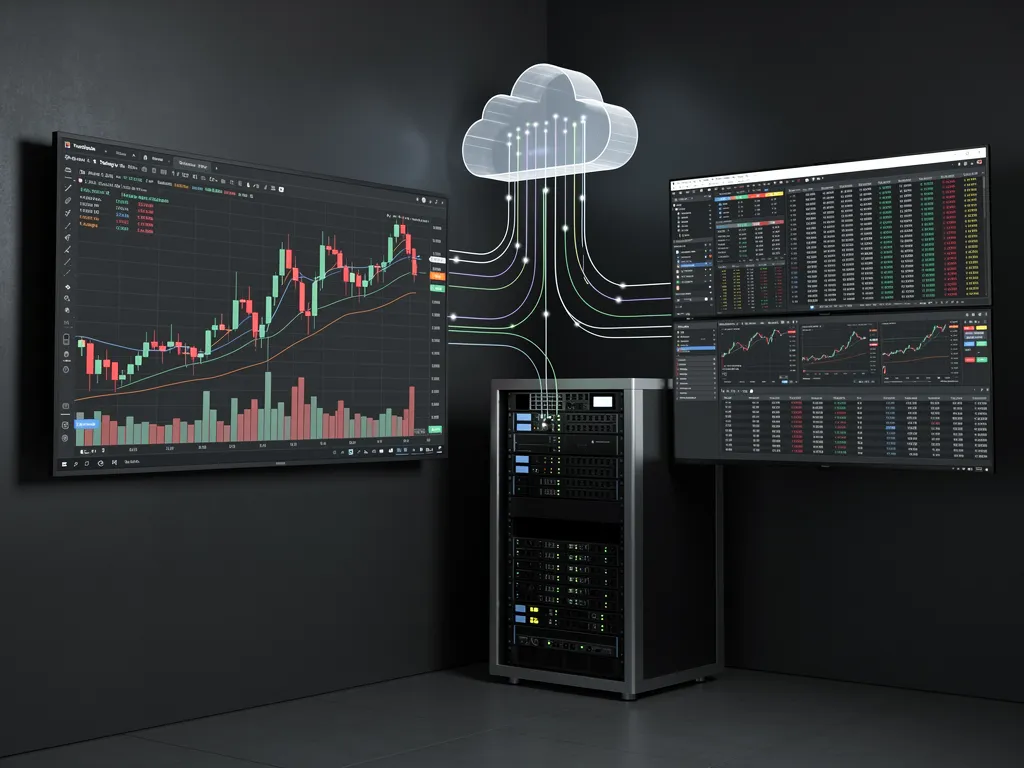
How to Send TradingView Alerts to MT4 Using a VPS
TradingView is where many traders build and test their ideas. Its charts are excellent, Pine Script is easy to learn, and its alerts can fire the moment your conditions are met. MetaTrader 4 is where many of those same traders actually execute, because that is what their broker or prop firm supports. The problem is that the two do not talk to each other out of the box.
The solution is a simple chain: TradingView sends an alert as a webhook, a bridge receives it, and an Expert Advisor running in MT4 on a VPS turns it into a trade. Set up properly, your Pine Script strategy can trade your MT4 account around the clock, without you watching either platform.
This guide explains how that chain works, what you need, how to set it up step by step, and the mistakes that most often cause missed or duplicate trades. The same approach works for MetaTrader 5.
How TradingView-to-MT4 Automation Works
There are four links in the chain, and each one must be running for a trade to happen.
- TradingView alert. Your indicator or strategy meets its condition, and TradingView creates an alert.
- Webhook. TradingView sends the alert message to a web address (a URL) you provide, as an HTTP POST request.
- Bridge. A service receives the webhook and translates the message into an instruction MT4 understands.
- MT4 Expert Advisor. An EA running in your MT4 terminal picks up the instruction and sends the order to your broker.
Links 1 to 3 run in the cloud. Link 4 runs wherever MT4 runs. If MT4 is on your home PC, every alert that fires while your PC is off, asleep or updating is lost. That is why the final link belongs on a VPS: it keeps MT4 and the EA online 24 hours a day, five days a week, close to your broker’s server.
What You Need Before You Start
A paid TradingView plan with two-factor authentication
Webhook notifications are a paid feature. All paid plans (Essential, Plus, Premium and Ultimate) include webhooks; the free Basic plan does not. The plans differ in how many alerts you can run and how long they last. According to third-party plan comparisons, alerts on the Essential and Plus plans expire two months after creation, while Premium and Ultimate alerts have no fixed expiry. If you trade a strategy for months, put a reminder in your calendar to recreate alerts, or choose a higher plan.
TradingView also only allows webhook alerts when two-factor authentication is turned on for your account. Turn it on in your TradingView profile settings before you start.
A bridge
The bridge is the piece that connects the webhook to MT4. You have two options, covered in detail below: a hosted bridge service, or a webhook receiver you run yourself.
MT4 on a Windows VPS
You need a VPS running Windows with MT4 installed and logged in to your account. If you are new to this, follow how to install MT4 on a VPS step by step. One terminal uses roughly 1 GB of RAM, so the Lite plan is enough for a single account.
Choosing a Bridge: Hosted Service vs Self-Hosted
Option A: A hosted bridge service (recommended for most traders)
Several commercial services specialise in connecting TradingView to MT4 and MT5. You get a webhook URL from the service, and you install the service’s EA in MT4. When an alert fires, TradingView sends it to the service, and the EA on your VPS collects it and places the trade.
The big advantage is that the EA makes an outgoing connection from your VPS to the service. You do not need to open any ports, run a web server or manage security certificates on your VPS. Setup takes minutes.
When comparing services, look at:
- Speed. How long between the alert firing and the order reaching MT4.
- Supported commands. Market and pending orders, stop loss and take profit, partial closes, risk-based lot sizing.
- Symbol mapping. Whether you can match TradingView symbols to your broker’s names, such as EURUSD to EURUSD.m.
- Price and account limits. Most charge a monthly subscription, often per MT4 account.
- Logs. Clear records of every alert received and every action taken, so you can troubleshoot.
Option B: Your own webhook receiver
Developers sometimes write their own receiver: a small program that listens for TradingView’s webhook and passes the instruction to MT4, usually through a file or a local connection that an EA reads.
This removes the subscription fee, but it adds responsibility. TradingView only sends webhooks to port 80 or 443, so your receiver must be reachable from the internet on one of those ports. In practice that means opening the port in the Windows firewall, ideally securing it with HTTPS, and only accepting requests from TradingView’s published IP addresses. TradingView also cancels a webhook if the receiving server takes longer than three seconds to respond.
Before running any public-facing service on a VPS, check your provider’s acceptable use policy. Cheap Forex VPS servers are optimised for trading platforms and are not intended for hosting websites, so please contact our support team before setting up a self-hosted receiver. For most traders, a hosted bridge is simpler and safer.
Step-by-Step Setup with a Hosted Bridge
The exact screens vary by provider, but the steps are almost always the same.
Step 1: Prepare your TradingView account
- Upgrade to a paid plan if you have not already.
- Turn on two-factor authentication in your account settings.
- Open the chart and indicator or strategy you want to automate.
Step 2: Set up the bridge account
- Create an account with your chosen bridge.
- Copy your webhook URL and any license or account ID the service gives you.
- Download the service’s MT4 EA (an .ex4 file).
Step 3: Install the EA on your VPS
- Connect to your VPS with remote desktop. Mac users can follow how to connect to a forex VPS from a Mac.
- Copy the .ex4 file to the VPS. Our guide on transferring files to a forex VPS with RDP covers the easiest methods.
- In MT4, click File > Open Data Folder, open MQL4 > Experts, and paste the file there. Restart MT4 or right-click Expert Advisors in the Navigator and choose Refresh.
- Click Tools > Options > Expert Advisors and tick Allow automated trading.
- If the provider tells you to, tick Allow WebRequest for listed URL and add the address they give you. MT4 blocks all web connections from EAs unless the address is on this list.
- Drag the EA onto one chart, enter your license or account ID in the inputs, and make sure the AutoTrading button is green.
Usually you attach the bridge EA to only one chart. It places trades on any symbol your alerts specify.
Step 4: Create the TradingView alert
- In TradingView, click the Alert button (the clock icon) or press Alt+A.
- Set the Condition to your indicator or strategy.
- Choose the trigger frequency. For most strategies, Once per bar close prevents trades on signals that disappear before the candle closes.
- In the Message box, enter the command in the exact format your bridge requires (see below).
- Under Notifications, tick Webhook URL and paste the URL from your bridge.
- Give the alert a clear name and click Create.
Step 5: Test on a demo account first
Always run the full chain on a demo account for at least a few days. Check that every alert produces exactly one trade, with the right size, stop loss and take profit. Only then switch the EA to your live account.
Writing the Alert Message
The alert message is the instruction. Every bridge has its own format, so copy it exactly from their documentation. Most messages contain the same information:
- Action: buy, sell, close or cancel.
- Symbol: the instrument, matched to your broker’s naming.
- Size or risk: fixed lots, or a percentage of balance.
- Stop loss and take profit: in pips or as prices.
- Identifier: a code that separates this strategy’s trades from others.
TradingView fills in dynamic values for you using placeholders in double curly brackets. For example, {{ticker}} inserts the symbol and {{close}} inserts the closing price. For strategies, {{strategy.order.action}} inserts buy or sell and {{strategy.order.contracts}} inserts the order size. Using placeholders lets one alert handle both buy and sell signals.
If your message is valid JSON, TradingView sends it with a JSON content type; otherwise it sends plain text. Use whichever your bridge expects.
Never put passwords or account logins in an alert message. TradingView advises against sending credentials in webhooks, and a good bridge never needs them.
Common Problems and How to Fix Them
Alerts fire but no trade appears in MT4
Work through the chain in order. In TradingView, open the alert log and check the webhook status column; a failure there means the bridge never received the alert. In the bridge dashboard, check whether the alert arrived. In MT4, open the Experts tab for error messages, and check that AutoTrading is green and the WebRequest address is allowed.
The wrong symbol, or “unknown symbol” errors
Your broker probably adds a suffix or prefix, such as EURUSD.raw or XAUUSDm. Set up symbol mapping in your bridge, or write the broker’s exact symbol name into the alert.
Duplicate trades
Usually caused by two alerts on the same condition, or a trigger set to “Once per bar” so it fires several times while a candle is open. Use “Once per bar close” and delete old alerts when you edit a strategy.
Alerts stopped working after a few weeks
Check whether your alerts expired. On some plans they switch off after two months and must be recreated.
Trades are late
Most delay comes from the bridge and from how often the EA checks for new instructions. Hosting MT4 on a VPS close to your broker removes the final leg of delay. Check your terminal-to-broker ping using our guide on how to check your broker ping in MT4 and MT5.
Using TradingView Alerts with a Prop Firm
Many prop firms accept automated trading, but their rules on EAs, copy trading and VPS use vary. FTMO, for example, asks traders not to set their location to the United States when using MetaTrader, cTrader or TradingView through a VPN or VPS. FundedNext only allows a VPS on smaller accounts and only for trade-taking EAs. Read do prop firms allow a VPS? before you connect a funded account.
Keep the Chain Running 24/5
Once trades are flowing, the weakest link is usually the MT4 terminal itself. These three habits keep it online:
- Disconnect from the VPS, never sign out. Signing out closes MT4 and the bridge EA.
- Make MT4 start automatically after a restart. Follow how to auto-start MT4 after a VPS reboot.
- Control Windows updates. Move restarts to the weekend with how to stop Windows updates restarting your forex VPS.
For a wider look at running automated systems, see what forex VPS hosting is best for trading bots and algorithms. When you are ready, choose a VPS plan in London or New York, whichever is closer to your broker.
Frequently Asked Questions
Can TradingView place trades in MT4 directly?
Not by itself. TradingView sends alerts; it needs a bridge and an EA running in MT4 to turn those alerts into trades.
Do I need a paid TradingView plan?
Yes. Webhook notifications are only available on paid plans, and TradingView also requires two-factor authentication to be enabled.
Why do I need a VPS if the bridge runs in the cloud?
The bridge only delivers the instruction. MT4 and the EA that places the trade still need to be running. A VPS keeps them online 24/5, even when your own computer is off.
Does this work with MT5?
Yes. Most bridge services offer an MT5 version of their EA. Install the .ex5 file in the MQL5 > Experts folder and follow the same steps.
Which TradingView alert frequency should I use?
For most strategies, “Once per bar close”. It prevents trades on signals that appear mid-candle and then disappear before the candle closes.
Can I run my own webhook receiver on the VPS?
Technically yes, but it must be reachable on port 80 or 443 and properly secured. Check your VPS provider’s policy first; at Cheap Forex VPS, please contact support before running any public-facing service.
How many alerts can I run?
It depends on your TradingView plan. Higher plans allow more active alerts and remove the fixed expiry that applies to lower plans.