Contact Info
118 ALJUNIED AVENUE 2, SINGAPORE (380118)
support@cheapforexvps.com


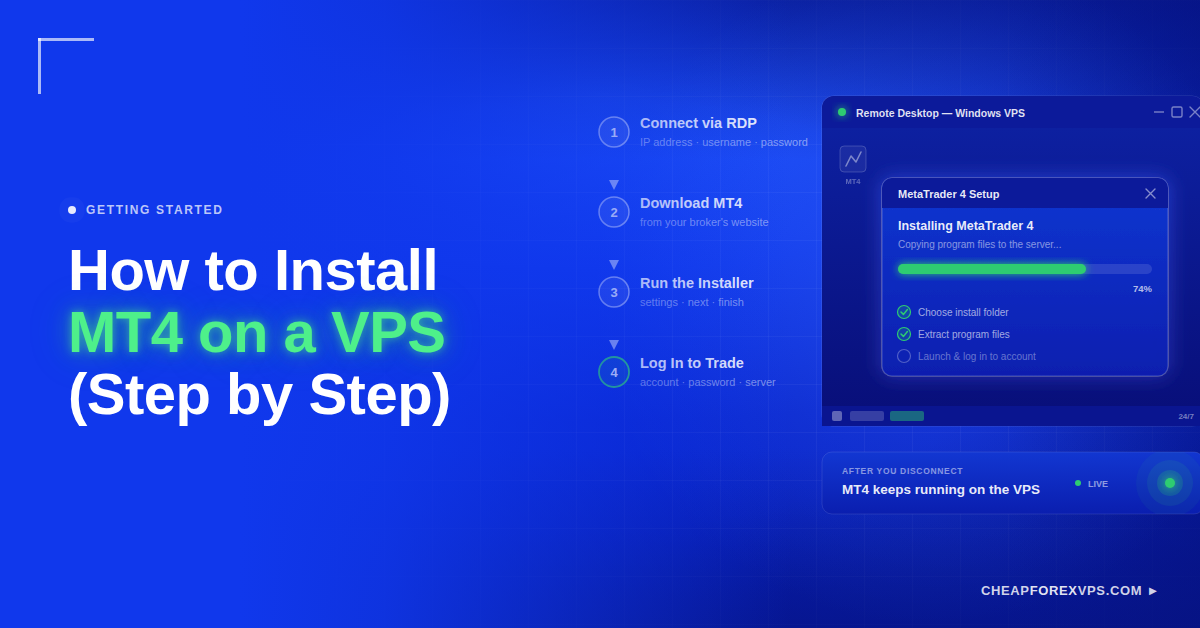
Your trading platform stops the moment your laptop sleeps, your internet drops, or Windows restarts for an update. For anyone running Expert Advisors or live strategies overnight, that downtime means missed entries and broken automation. Installing MT4 on a VPS fixes this: you connect to a remote server through Remote Desktop, download MT4, run the installer, and log in, and the platform keeps executing even when your computer is off.
This guide walks through the full sequence: connecting to the VPS, downloading MT4 from your broker, installing and logging in, adding tools, and keeping the platform running without interruption.
How Do You Install MT4 on a VPS?
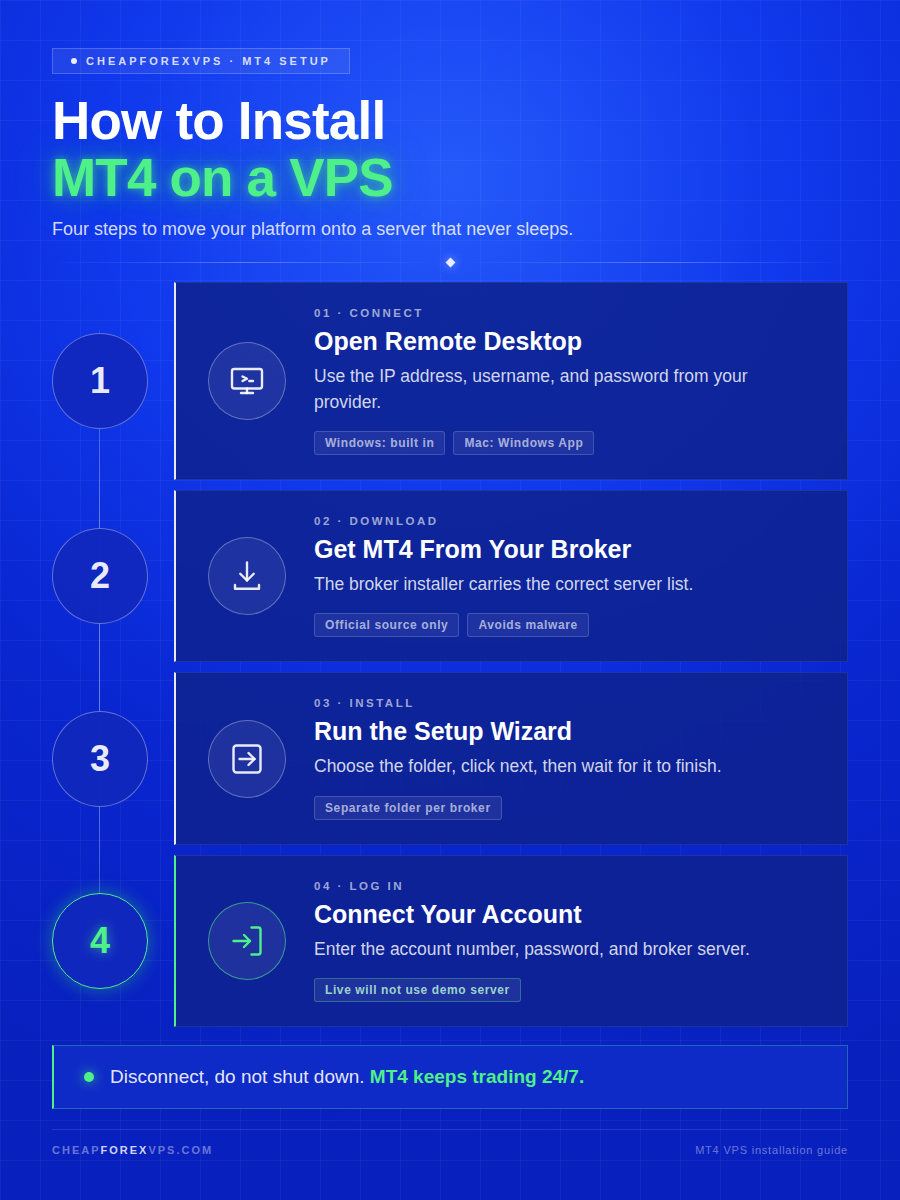
To install MT4 on a VPS, connect to it via Remote Desktop, download the MT4 installer from your broker’s website, run the installer, then log in with your trading account. MT4 then runs continuously on the server, independent of your personal computer.
The full installation follows the same logic as installing MT4 on any Windows machine. The one difference is the remote connection step at the start.
| Step | Action |
| 1 | Connect to the VPS with Remote Desktop |
| 2 | Open a web browser inside the server |
| 3 | Download MT4 from your broker |
| 4 | Run the MT4 installer |
| 5 | Follow the setup prompts |
| 6 | Open the MT4 platform |
| 7 | Log in with your trading account |
| 8 | Add your Expert Advisor, indicator, or templates |
| 9 | Leave MT4 running on the VPS |
The platform runs on the virtual private server, not on your personal computer. You can close the remote desktop session while MT4 keeps trading. Retail forex remains a large market, with the Bank for International Settlements reporting daily foreign exchange turnover of $7.5 trillion in its 2022 Triennial Survey, and automated execution on a stable, low-latency server is one way traders keep pace with it.
How Do You Connect to the VPS Before You Start?
Before installing MT4, connect to your Windows VPS using Remote Desktop and the login details from your provider. Your VPS provider sends these credentials once the server is ready.
The connection process differs slightly between Windows and Mac, but both open the same remote Windows desktop where MT4 will live.
What Details Do You Need?
Your VPS provider sends a set of login credentials after the server is provisioned. You need these to open the remote Windows desktop and begin the MT4 installation:
- VPS IP address for Remote Desktop access
- Windows username for server login
- Password for secure VPS access
- RDP port, if your provider uses one
- Control panel link for server management
- Basic setup instructions from the provider
Keep these credentials private. Anyone with the correct IP address, username, and password can access your VPS. Compromised remote access is a common attack vector: IBM’s 2024 Cost of a Data Breach Report put the global average breach cost at $4.88 million, which underlines why unattended trading servers deserve strong, private passwords.
How Do You Connect From Windows?
Windows includes a built-in Remote Desktop Connection app, so no extra download is needed. Follow these steps to reach the VPS desktop:
- Click the Windows Start menu
- Search for Remote Desktop Connection
- Open the app
- Enter the VPS IP address
- Click Connect
- Enter the username and password
- Accept the certificate prompt if the server details match
- Wait for the Windows desktop to load
Once the desktop loads, you are inside the VPS. It looks and behaves like a standard Windows computer.
How Do You Connect From Mac?
On a Mac, install Microsoft’s Windows App (formerly Microsoft Remote Desktop) to reach a Windows VPS. This app opens the VPS screen so you can install MT4 inside the remote server rather than on macOS.
- Install the Windows App or Remote Desktop client
- Add a new PC connection
- Enter the VPS IP address
- Add the username
- Save the connection
- Connect to the server
- Enter the password when prompted
After you connect, MT4 installs exactly as it would on a regular computer. The installer, platform, and trading files all stay inside the VPS, not on your Mac.
How Do You Download MT4 From Your Broker?
Download MT4 from your broker’s official website, because the broker’s installer comes preloaded with the correct server list and branding for your account. This makes login easier and reduces confusion when a broker runs multiple servers.
Downloading from the wrong source is a real risk. A trading server should stay clean, especially when it runs EAs and live accounts.
Why Should You Use the Broker’s Installer?
A broker-provided MT4 installer usually includes the correct broker server list, which makes login simpler after installation. It also removes confusion when your broker operates several live, demo, or regional servers.
Use the official MetaTrader source only if your broker does not offer a download, or if broker support tells you to. For most beginners, the broker’s installer is easier because it already matches the broker’s platform setup.
How Do You Download the Installer?
Downloading the installer takes a few steps inside the VPS browser. Follow this sequence:
- Open the web browser
- Go to your broker’s official website
- Find the Platforms, Downloads, or MT4 page
- Choose the Windows version of MetaTrader 4
- Click Download
- Save the installer to the desktop or Downloads folder
Avoid downloading MT4 from random file-sharing pages. Third-party installers are a known malware channel: Verizon’s 2024 Data Breach Investigations Report found that 68% of breaches involved a non-malicious human element, such as someone downloading a compromised file. A clean broker source protects a server that runs live accounts.
What If the Download Does Not Start?
A failed MT4 download usually traces to the browser, security settings, internet access, or the broker’s download link. Work through these checks before changing major server settings:
- Confirm the server has internet access
- Try another browser
- Check Windows security prompts
- Make sure the broker site is not blocked
- Ask the broker for a direct installer link
- Ask support whether the VPS firewall is blocking the download
Do not disable every security setting to force a download. Identify and fix the specific cause instead.
How Do You Install and Log In to MT4?
After the installer downloads, run it to add MT4 to the VPS, then log in through File > Login to Trade Account using your account number, password, and broker server. The process mirrors installing any Windows program.
Two stages matter here: running the installer and confirming the account connects.
How Do You Run the Installer?
Running the installer adds MT4 to the Windows VPS like any other program. Follow these steps to install it and open the platform for the first time:
- Double-click the MT4 installer file
- Click Run if Windows asks for confirmation
- Read the setup screen
- Click Settings if you want to choose the installation folder
- Choose the folder or keep the default
- Click Next
- Wait for installation to finish
- Launch MT4
For one broker and one platform, the default folder is fine. If you plan to install multiple MT4 terminals, use a separate folder for each one.
How Do You Log In to Your Trading Account?
After MT4 opens, log in with your broker account details through the File menu. Follow these steps:
- Click File
- Click Login to Trade Account
- Enter your account number
- Enter your password
- Select the correct broker server
- Click Login
- Check the connection status in the lower-right corner
If login fails, verify the account number, password, and server name. A live account will not connect to a demo server, and the wrong server is the most common cause of a failed login.
How Do You Know MT4 Is Working?
Confirm MT4 is fully connected before adding EAs, indicators, or live strategies. Look for these signs that the platform is working:
- Prices are moving
- The connection icon is active
- The account balance appears
- Charts are loading
- No “invalid account” message appears
- The Journal tab shows a successful login
Once the terminal is connected, customize charts, add indicators, and prepare your strategies. Do this before leaving MT4 running so you know the setup matches your trading style.
How Do You Add an Expert Advisor or Indicator?
Add an Expert Advisor by copying its file into the MT4 Experts folder, and add an indicator by copying its file into the Indicators folder, then restart MT4 so it recognizes each one. An Expert Advisor is an automated program that places and manages trades inside MT4 without manual input.
Many traders choose MT4 VPS hosting specifically so an Expert Advisor can run without downtime. Add files carefully to keep the platform organized.
How Do You Add an Expert Advisor?
Adding an Expert Advisor means placing the EA file inside the correct MT4 folder, then attaching it to the chart it should manage. Follow these steps so MT4 can recognize and run the EA:
- Open MT4
- Click File
- Click Open Data Folder
- Open the MQL4 folder
- Open the Experts folder
- Copy the EA file into that folder
- Restart MT4
- Open the Navigator panel
- Drag the EA onto the correct chart
- Enable automated trading
If the advisor needs special settings, follow the developer’s instructions. Some EAs require DLL imports, web requests, or a specific chart timeframe.
How Do You Add an Indicator?
Adding an indicator works almost the same way as adding an EA, except the file goes into the Indicators folder. Follow these steps so MT4 can load the indicator onto your charts:
- Open File
- Click Open Data Folder
- Open MQL4
- Open Indicators
- Copy the indicator file into the folder
- Restart MT4
- Add the indicator to the chart
Keep only the tools you actually use. Too many indicators and EAs can slow the server and make the setup harder to manage.
How Do You Set MT4 to Launch on Startup?
Set MT4 to launch on startup by copying its desktop shortcut into the Windows Startup folder, so the platform reopens automatically after a server reboot. This keeps automated trading running through scheduled restarts and updates.
Startup automation is one part of keeping MT4 online. Disconnecting correctly and maintaining the server are the others.
How Do You Add MT4 to the Startup Folder?
Adding MT4 to the Startup folder makes the platform reopen automatically if the VPS restarts. Follow these steps only after MT4 is installed, logged in, and configured:
- Find the MT4 shortcut on the desktop
- Press Windows + R
- Type shell:startup
- Press Enter
- Copy the MT4 shortcut into the Startup folder
- Restart the VPS during a safe time to test it
- Confirm MT4 opens automatically
Do this only after the platform is configured correctly. If you run multiple brokers or terminals, label each shortcut clearly.
How Do You Keep MT4 Running After Setup?
Do not shut down the VPS when you finish. Disconnect instead, so the server keeps running in the data center while MT4 stays active.
- Confirm MT4 is open
- Confirm the account is connected
- Confirm any EA is running
- Close the Remote Desktop window
- Choose Disconnect, not Shut down
The VPS continues running in the data center after you disconnect. Your home computer can be off while MT4 stays live. Server uptime carries a real cost when it fails: Gartner has estimated the average cost of IT downtime at $5,600 per minute, which is why a provider’s uptime guarantee matters for automated trading. CheapForexVPS backs its plans with a 99.95% uptime guarantee for this reason.
How Do You Reduce Problems After Installation?
Good maintenance habits keep the VPS stable after MT4 is installed. Use these habits to reduce clutter, avoid connection issues, and keep the platform manageable:
- Keep the server clean
- Avoid random downloads
- Do not install unnecessary apps
- Keep Windows updated
- Restart only during safe trading hours
- Save broker server details
- Keep backup copies of EA settings
- Monitor latency to the broker
A fast, reliable forex VPS supports trade execution, but the setup still needs to stay clean and stable. Keeping latency to the broker low is part of that, and the better you manage the server after installation, the easier it is to keep MT4 running without avoidable problems.
Installing MT4 on a VPS: Key Takeaways
Installing MT4 on a VPS comes down to three core actions: connect through Remote Desktop, download the installer from your broker, and log in with your trading account. Once MT4 is connected and running, adding EAs, setting startup automation, and disconnecting correctly keep the platform live around the clock. A clean, well-maintained server is what keeps automated forex strategies executing without interruption.
If you want a simple MT4 setup with low latency and strong uptime, get in touch to find a VPS that fits your broker, platform, and trading style. Contact CheapForexVPS.
Frequently Asked Questions About Installing MT4 on a VPS
Can I install more than one broker’s MT4?
Yes. Install each broker’s MT4 in a separate folder and use a clearly labeled desktop shortcut for each one. This keeps profiles, server details, EAs, and account settings separate.
Why won’t MT4 download on the VPS?
The download may be blocked by browser settings, Windows security, a firewall rule, or a broken broker link. Try another browser, ask the broker for a direct installer link, or contact support if the server cannot reach the download page.
Do I keep the installer file?
You can delete the installer after MT4 is installed to keep the VPS clean. Keep a copy only if you may need it for a future reinstall, and avoid cluttering the server with old setup files.
Does MT4 keep running when I close Remote Desktop?
Yes. When you disconnect from the remote session rather than shutting down, the VPS keeps running in the data center. MT4 and any active EA continue executing while your personal computer is off.
Do I need a VPS to run MT4?
No, but a VPS is useful for uninterrupted trading. Running MT4 on your own computer stops when the machine sleeps, loses internet, or restarts, while a VPS keeps the platform online continuously.
How much does a forex VPS for MT4 cost?
Entry-level forex VPS plans start from around $5 a month. CheapForexVPS offers plans from $5 a month with a 5-day money-back guarantee, so you can test the setup before committing.