Contact Info
118 ALJUNIED AVENUE 2, SINGAPORE (380118)
support@cheapforexvps.com


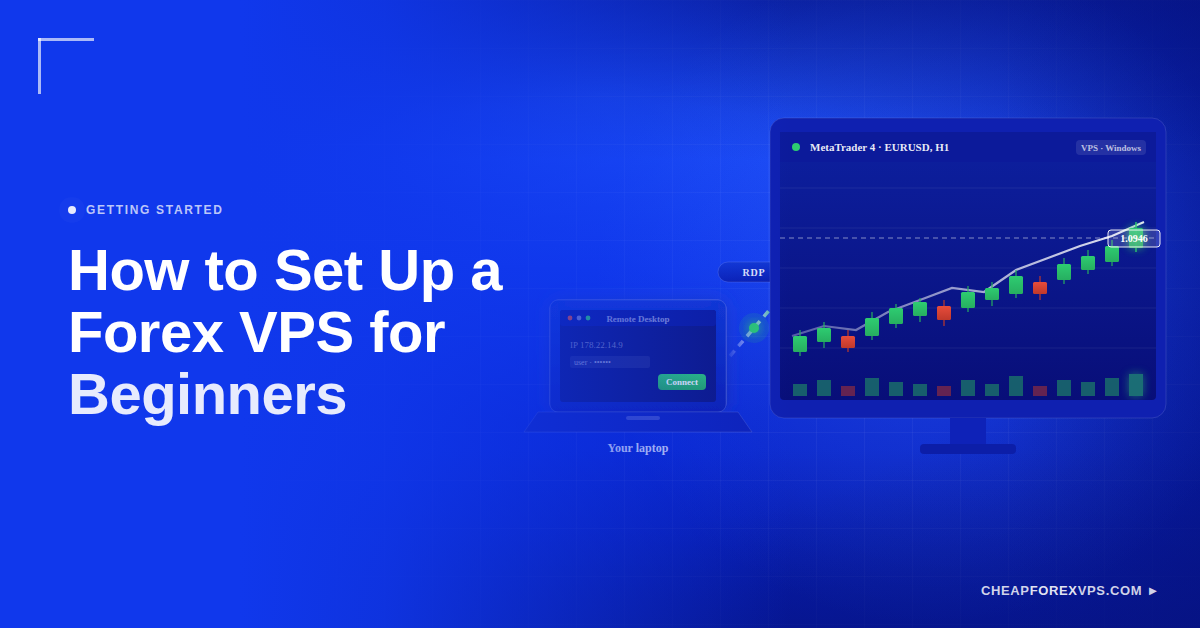
How to Set Up a Forex VPS for Beginners (No Tech Background Needed)
You want your trading platform to run around the clock, but your laptop cannot stay on forever. A forex VPS solves that: it is a remote Windows computer running inside a data center that keeps MT4, MT5, and your Expert Advisors online even when your own machine is off. Setting one up is not much harder than logging into a second Windows PC.
This guide walks you through every step: choosing a plan and location, connecting via Remote Desktop, installing MT4 or MT5, setting Expert Advisors to run automatically, and avoiding the mistakes that trip up most beginners.
How Do You Set Up a Forex VPS for Beginners?
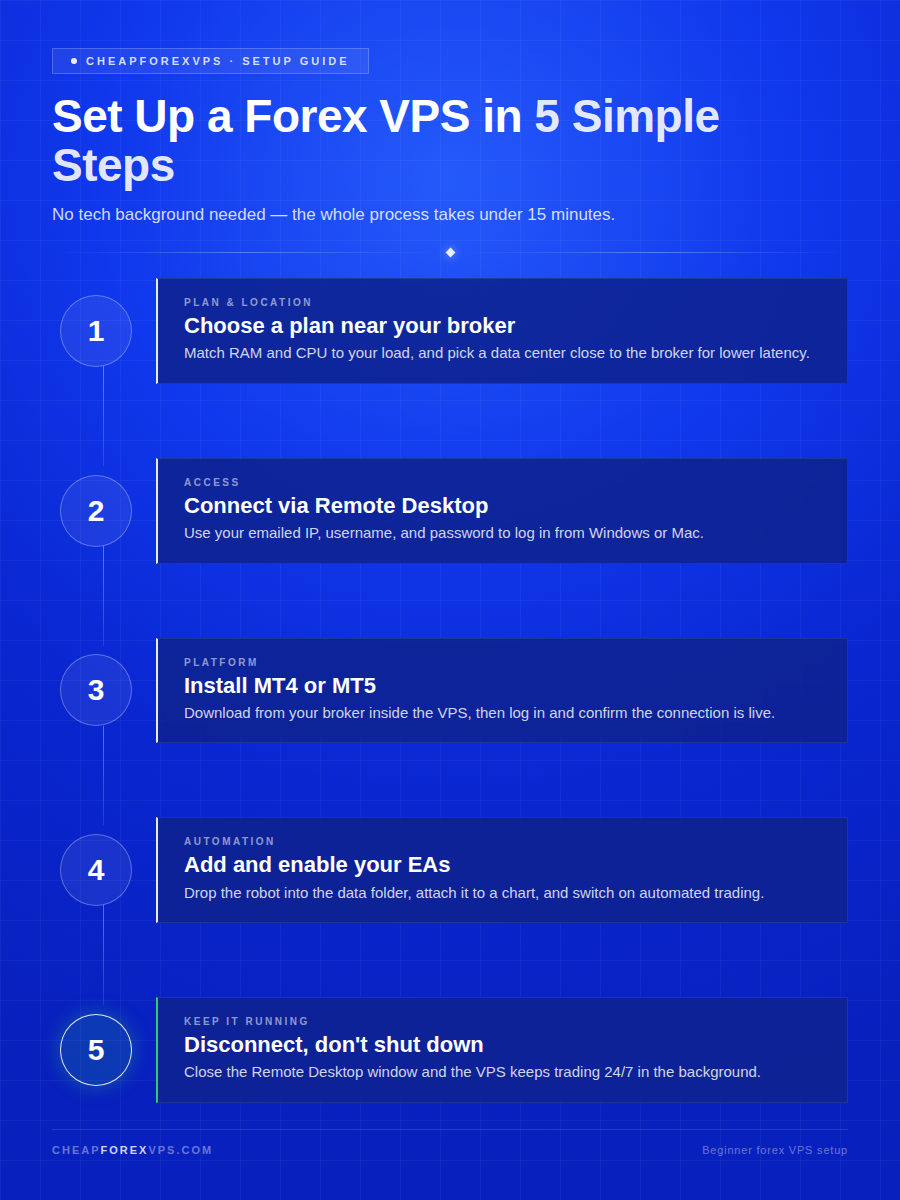
To set up a forex VPS, choose a plan near your broker, receive your login details, connect with Remote Desktop, install your trading platform, and log in. The whole process usually takes under 15 minutes.
The core sequence is short:
- Choose a forex VPS plan sized to your trading load.
- Pick a server location near your broker.
- Wait for the provider to send your login details.
- Connect to the Windows VPS with Remote Desktop.
- Install MT4, MT5, or your preferred platform.
- Log in to your trading account.
- Add EAs, indicators, or templates.
- Disconnect and leave the platform running on the server.
The VPS keeps running even when your laptop is closed or your local computer is off, which is why traders use it for uninterrupted operation. Latency-sensitive strategies benefit most: order execution over a data-center connection can complete in single-digit milliseconds, compared with the 50 to 200 milliseconds a typical home broadband round trip can add.
How Do You Choose a Plan and Location?
Start with your trading needs, not the largest plan on the page. A beginner running one platform needs far fewer resources than someone running ten.
Two factors decide the right setup: how much compute your platforms require, and how close the server sits to your broker. Get both right and your platform runs fast and stable without overspending.
How Much Power Do You Need?
Match the plan to your workload rather than guessing. Each MT4 or MT5 terminal consumes roughly 200 to 400 MB of RAM at idle, so plan headroom accordingly.
| Trading Setup | Suggested Plan Size | Best For |
| One MT4 platform | Entry-level VPS plan | Manual trading or one light EA |
| MT4 or MT5 with several charts | Standard VPS plan | Normal forex trading |
| Several platforms | Mid-level VPS plan | Multiple accounts or EAs |
| Heavy automation | Larger VPS plan | Automated strategies and trade copiers |
For one platform and one forex robot, a small plan is usually enough. Most beginners choose a Windows VPS because MT4 and MT5 install natively there. CheapForexVPS entry plans start from $5 a month, which covers a single-platform setup without forcing an upgrade.
Why Does Location Matter?
Location determines latency, the time it takes your platform to communicate with your broker’s server. The shorter the physical distance, the faster that round trip.
Choose a data center near your broker’s server. If your broker is in London, a London VPS beats one in Asia. If the broker is in New York, a New York location cuts the delay. Lower latency helps most with scalping, automated trading, and fast order management, though it does not guarantee profit.
Before ordering, confirm each of these:
- Broker server location relative to the VPS
- Data center options close to that broker
- RAM and CPU for your platform load
- Storage for terminals, logs, and files
- Windows version that supports MT4 or MT5
- Support availability for setup issues
- Upgrade path as your setup grows
CheapForexVPS runs nodes in Equinix NY4 (New York), LD4 (London), TY3 (Tokyo), and Singapore, the same facilities where many broker servers are colocated. Placing your VPS in the matching facility can drop latency to under a millisecond.
How Do You Connect via Remote Desktop?
After you order, the provider sends login details by email or through your client dashboard, and you use those to connect with Remote Desktop. Remote Desktop is the built-in tool that lets one computer control another over the internet.
The credentials you receive control full access to your server, so handle them like banking logins.
What Login Details Will You Receive?
Your provider sends everything needed to reach the server. Keep these private:
- Server IP address
- Username
- Password
- Remote Desktop port, if custom
- Control panel link
- Basic setup instructions
Store the password in a manager, never in plain text. Anyone with these details can log into your VPS.
How Do You Connect From Windows?
Windows includes Remote Desktop Connection by default. Follow these steps:
- Open the Start menu and search for Remote Desktop Connection.
- Open the app and enter the VPS IP address.
- Click Connect.
- Enter your username and password.
- Accept the certificate prompt if the details match your server.
- Wait for the Windows VPS desktop to load.
Once connected, you are inside your remote trading server, and it looks like a normal Windows desktop.
How Do You Connect From Mac?
Mac users need Microsoft’s free remote access app from the App Store. The setup mirrors the Windows process:
- Install the Windows App or Microsoft Remote Desktop client.
- Add a new PC connection.
- Enter the VPS server IP address and your username.
- Save the connection.
- Connect and enter your password.
- Open the Windows VPS desktop.
From there you install trading software exactly as you would on any Windows computer, and you can reconnect from anywhere with the login details and a stable connection.
How Do You Install MT4 or MT5?
Download the installer from your broker or the official MetaTrader source inside the VPS, run it, and log in with your trading account. Most beginners pick MT4 or MT5 because brokers support them widely and both install cleanly on a Windows VPS.
Install only from your broker’s page or the official MetaQuotes source. Third-party installers are a common vector for tampered platforms.
How Do You Install MT4?
MT4 remains the standard for forex trading, Expert Advisors, and custom indicators, and many EAs are built only for it. To install:
- Open a browser inside the VPS.
- Go to your broker’s platform download page.
- Download and run the MT4 installer.
- Follow the installation prompts.
- Open MT4 and choose your broker server.
- Enter your trading account login.
- Confirm the account connects successfully.
How Do You Install MT5?
MT5 installs almost identically to MT4 but suits traders who need newer tools, more markets, or advanced features. To install:
- Open the broker’s MT5 download page.
- Download and install the platform on the VPS.
- Open MT5 and select the correct broker server.
- Enter your login details.
- Check that the platform shows a live connection.
MT5 covers forex, stocks, and futures alongside broader tooling. Use whichever platform your broker and strategy require.
How Do You Check the Platform Is Working?
Confirm the connection before adding EAs or leaving the platform running. A live setup shows all of these signs:
- Connection status is active.
- Prices are moving.
- Account balance appears.
- Correct broker server is selected.
- Charts load properly.
- No login error appears.
If the platform will not connect, recheck the account number, password, and server name. A single typo stops the login.
How Do You Set EAs to Run Automatically?
Place the robot file in the correct MT4 or MT5 folder, attach it to a chart, and enable automated trading. Expert Advisors are automated trading programs, and keeping them online without a home computer is the main reason traders buy a VPS.
The workflow has two stages: add the EA, then confirm it is actually running before you disconnect.
How Do You Add an EA?
Adding an EA means dropping the file into the platform’s data folder and attaching it to the right chart. Follow the steps in order:
- Open MT4 or MT5.
- Click File, then Open Data Folder.
- Open the correct EA folder.
- Copy the EA file into that folder.
- Restart the trading platform.
- Open the Navigator panel.
- Drag the EA onto the chart.
- Adjust the EA settings.
- Enable automated trading.
Make sure the correct symbol and timeframe are open, since some EAs only work on specific charts.
How Do You Confirm the EA Is Running?
Check that the EA is active before disconnecting. These signs confirm the platform, EA, and server are working together:
- The EA appears on the chart.
- Automated trading is enabled.
- No error messages show.
- The Experts and Journal tabs look normal.
- The VPS remains connected.
If your EA needs DLL permissions, web requests, or special settings, follow the developer’s instructions exactly.
How Do You Keep Trading Platforms Running?
Disconnect from Remote Desktop instead of shutting down the VPS. Closing the connection leaves MT4 or MT5 running on the server. Shutting down the VPS stops everything.
Build this habit every time you finish:
- Confirm the platform is running.
- Confirm the EA is active.
- Close the Remote Desktop window.
- Choose disconnect, not shutdown.
- Let the VPS keep running in the background.
The platforms run on the server, not your local computer. That separation is the core benefit of a forex VPS. A provider offering a 99.95% uptime guarantee, as CheapForexVPS does, keeps that server available so your EAs do not go dark mid-session.
What Beginner Mistakes Should You Avoid?
Most VPS setup problems come from rushing, choosing the wrong plan size, or closing the wrong window after installation. These are easy to avoid once you know them.
What Should You Not Do During Setup?
Avoid the mistakes that leave a setup slow, insecure, or offline:
- Choosing a server far from the broker
- Buying the largest plan without checking needs
- Buying the smallest plan and overloading it
- Installing EAs from unknown sources
- Saving passwords in plain text
- Closing MT4 after setting up the EA
- Shutting down the VPS instead of disconnecting
- Ignoring Windows updates indefinitely
- Using weak passwords
- Skipping a demo test first
A forex VPS keeps your platform online, but it does not fix a weak strategy or an unsafe setup.
How Do You Know the Setup Is Ready?
Run the full setup end to end before committing live funds. A ready setup passes every check below:
- The platform opens correctly.
- The broker login works.
- The EA is attached.
- Automated trading is enabled.
- The server time looks correct.
- The connection is stable.
- Latency is acceptable.
- You know how to reconnect.
Test everything on a demo account first when possible. That gives you room to fix mistakes before real trades are involved.
How to Set Up a Forex VPS: Key Takeaways
A forex VPS gives your trading platform a stable, always-on home inside a data center, and setting one up takes under 15 minutes with no technical background. The four decisions that matter most are plan size, server location near your broker, a clean platform install, and disconnecting rather than shutting down. Match the resources to your strategy, keep your credentials secure, and test on demo before going live.
If you want help matching a VPS location and plan to your broker and trading load, compare plans with us before you order by getting in touch through the CheapForexVPS contact page.
Frequently Asked Questions About Setting Up a Forex VPS
Do I need to keep my computer on?
No. Once the trading platform is running on the VPS, your home computer does not need to stay on. You can disconnect from Remote Desktop and the server keeps running.
Is setting up a VPS hard for non-techies?
No. Most beginners can set up a forex VPS by following the basic steps: choose a plan, connect with Remote Desktop, install the platform, log in, and keep it running. It feels unfamiliar at first but is not complicated.
What login details will I receive?
You will usually receive the server IP address, username, and password, and sometimes a custom RDP port or control panel link. Keep these private, because they control access to your VPS.
How long does setup take?
Setup usually takes under 15 minutes. Most of that time is downloading and installing MT4 or MT5, since the connection and login steps take only a few minutes each.
Can I connect to a forex VPS from a Mac?
Yes. Install Microsoft’s free Remote Desktop client from the App Store, add the VPS IP and your username, then connect with your password. The VPS itself still runs Windows, so MT4 and MT5 install normally.