
Contact Info
118 ALJUNIED AVENUE 2, SINGAPORE (380118)
support@cheapforexvps.com


EA Backtesting on a Cloud VPS: The Algo Trader’s Guide
*Short answer: A good EA backtest uses accurate tick data, realistic spreads and costs, and a clear split between the data you optimise on and the data you check on. A cloud VPS makes that process repeatable: it runs tests around the clock, keeps your own computer free, and lets you move a strategy from backtest to demo forward test on the same server. No backtest guarantees live results, but a careful one tells you which ideas are worth risking money on.*
This guide is about the method, not the buttons. If you want to know how the MetaTrader 5 Strategy Tester uses CPU cores, testing agents and memory on a server, read can you run the MT5 Strategy Tester on a VPS? first. Here we cover how to run backtests you can trust, and how to turn a VPS into a testing pipeline that works while you sleep.
Why Run EA Backtests on a Cloud VPS?
A VPS adds three things to a testing workflow:
- It never stops. Long optimisations can run for many hours. On a VPS they keep going when you close your laptop or lose power at home.
- Your own computer stays free. Heavy tests make a desktop slow and noisy. Moving them to a server keeps your daily machine usable.
- One place from test to live. The same server can run your backtests, your demo forward test and, later, your live EA, so the environment barely changes between stages.
Step 1: Get the Data Right
A backtest can only be as good as the price history behind it.
Choose the right modelling mode
MetaTrader 5 offers several modelling modes. In short:
A sensible rule: screen ideas quickly with faster modes, then confirm anything promising with real ticks. MT4 users can reach a similar standard with third-party tick data tools, but the principle is the same: never trust a scalping or tight-stop EA tested on simulated prices alone.
Check the history itself
Download history once on the VPS and use the same data for every comparison.
Step 2: Model Real Trading Costs
Set the tester to match your real account costs:
- Spread. Use your broker’s real or typical spread, not a tiny fixed value. If you trade around news or the daily rollover, assume wider spreads.
- Commission. Raw-spread accounts charge a commission per lot. Include it.
- Swap. EAs that hold trades overnight pay or earn swap. Make sure it is applied.
- Execution delay and slippage. The MT5 tester can emulate a fixed or random delay. If your EA scalps or trades news, test with a delay switched on and compare.
Step 3: Split In-Sample and Out-of-Sample Data
This is the most important habit in EA testing.
- In-sample data is the period you optimise on: where you search for the best settings.
- Out-of-sample data is a later period the optimiser never saw. You only use it to check the result.
The MT5 tester can set this up for you. In the Forward setting, reserve 1/2, 1/3 or 1/4 of the history, or set a custom date. After optimising, judge the EA on the Forward results tab, not on the optimisation tab. The best settings will always look great on the data they were chosen from; the question is whether they still work on data they have never seen.
Step 4: Use Walk-Forward Analysis
A single out-of-sample period is good. Several are better. Walk-forward analysis repeats the process through time:
- Optimise on, say, two years of data.
- Test the chosen settings on the next six months.
- Move the whole window forward six months and repeat.
- Join together all the out-of-sample periods and look at the combined result.
If the combined out-of-sample results are reasonably close to the in-sample results, the strategy adapts to changing markets. If they collapse, the optimiser was finding noise. Walk-forward testing takes many optimisation runs, which is exactly the kind of long, unattended job a VPS is good at.
Step 5: Avoid Overfitting
Overfitting, or curve fitting, means tuning an EA so tightly to past data that it describes history instead of a real market pattern. Warning signs:
- Too many parameters. Every extra input gives the optimiser another way to fit noise. Fewer parameters are harder to fool.
- Too few trades. A result built on 40 trades means little. Aim for hundreds where the strategy allows it.
- A single “spike” of good results. If the best setting sits next to settings that lose money, it is luck. Look for broad areas where many nearby settings all work.
Step 6: Stress-Test for Robustness
Before you trust an EA, try to break it:
- Change the costs. Add half a pip of spread or a little extra slippage. A robust EA degrades gently.
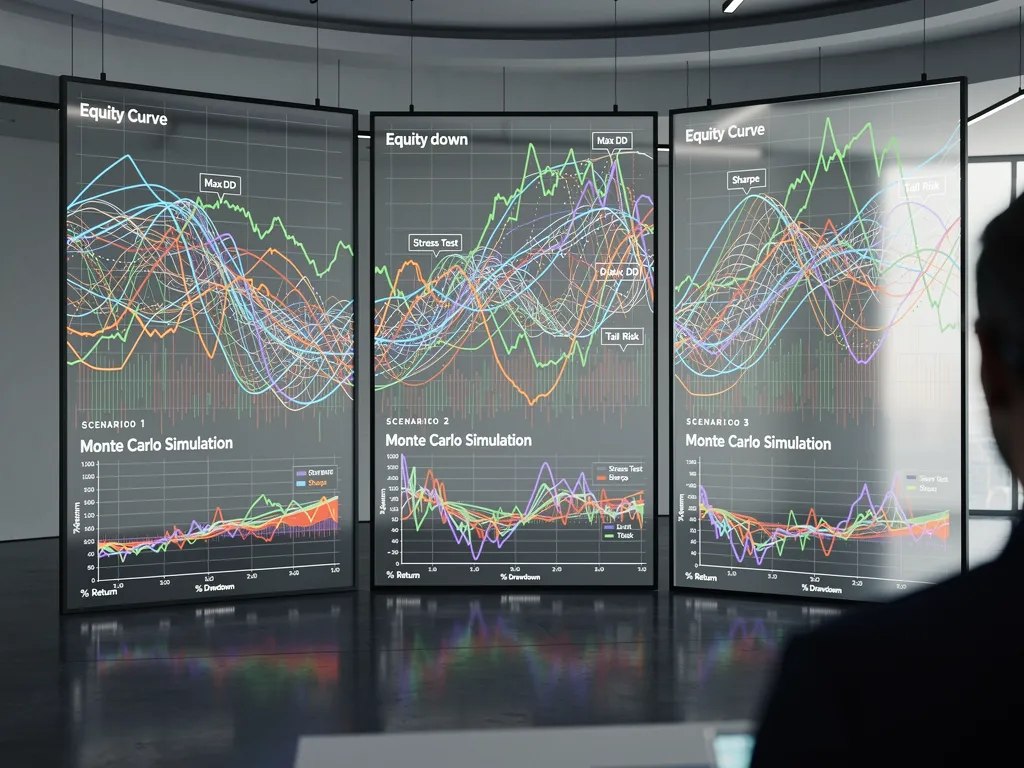
- Shuffle the trade order. Monte Carlo-style tests reorder or resample your trade list many times to show a realistic range of drawdowns, not just the single path history happened to take.
- Try other periods and symbols. A trend-following idea that works on EURUSD should not fail completely on GBPUSD or in a different year.
- Nudge the parameters. Move each input a little. If profit vanishes, the edge was probably a coincidence.
Step 7: Forward Test on a Demo Account
Backtests cannot copy everything: real fills, requotes, server hiccups, spread spikes and your broker’s exact execution. After the backtest, run the EA on a demo account, ideally for several weeks, under the same settings you plan to use live. A VPS is the natural place for this, because the EA runs 24/5 exactly as it would with real money. Read do you need a VPS to test an EA on a demo account? for the details.
Building a 24/7 Testing Pipeline on a VPS

A simple, repeatable setup:
- Keep a separate testing terminal. Install a second copy of MetaTrader in its own folder for testing only, logged in to a demo account. Your live terminal stays untouched.
- Schedule heavy work for the weekend. Run big optimisations and walk-forward batches between Friday’s close and Sunday’s open, when no live trades are at risk.
- Limit testing agents during the week. Leave some CPU free for live EAs.
- Save every report. Export tester reports and optimisation results into dated folders, with a short note of the settings and data used. Months later, you will know exactly how a result was produced.
- Back up your work. Copy reports and EA versions off the server regularly. See how to back up your forex VPS and trading data.
Choosing a VPS for EA Backtesting
For occasional single backtests, a small plan is enough. Optimisation and walk-forward testing benefit from more CPU cores, because the MT5 tester runs one pass per core at the same time. Memory matters if you test several symbols at once or run live terminals alongside. Our guides on shared vCPU vs dedicated CPU and how many EAs a cheap forex VPS can run help you size the server.
When you are ready, compare our forex VPS plans, from 1 core up to 32 cores, all with NVMe or SSD storage.
Frequently Asked Questions
Does a good backtest mean my EA will make money?
No. A backtest shows how rules would have behaved on past data under the costs you entered. Markets change, and live execution differs. Use backtests to reject weak ideas, then confirm with out-of-sample and demo testing.
How much data should I keep out-of-sample?
A common choice is a quarter to a third of your history. The MT5 tester can reserve 1/2, 1/3 or 1/4 automatically, or you can set a custom start date.
What is walk-forward analysis?
It repeats optimisation and out-of-sample testing across several windows of time, then combines the out-of-sample results. It shows whether a strategy keeps working as markets change.
How do I know if my EA is overfitted?
Watch for many parameters, few trades, a single best setting surrounded by losing ones, and results that collapse on out-of-sample data or when costs rise slightly.