Contact Info
118 ALJUNIED AVENUE 2, SINGAPORE (380118)
support@cheapforexvps.com


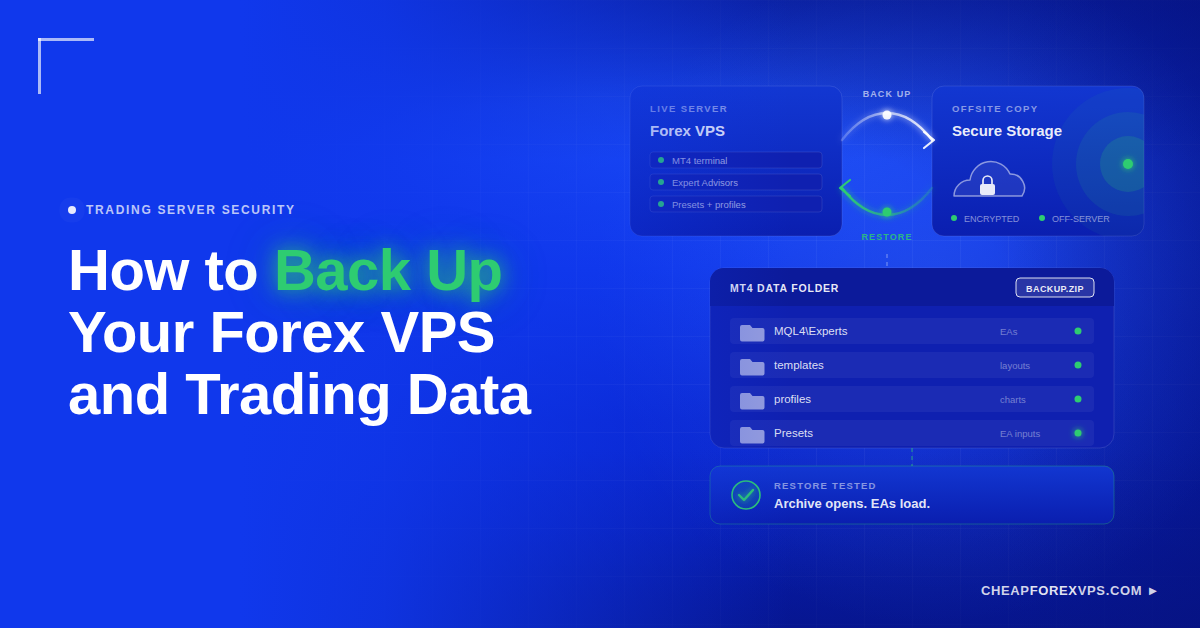
Your Expert Advisors, indicators, templates, profiles, presets, and broker notes took months to tune. A single failed Windows update or a mistaken folder deletion can erase all of it, and a forex VPS keeps your platform online without keeping your files safe. To back up a forex VPS, copy your MetaTrader data folder to storage outside the server on a fixed schedule and pair it with provider snapshots for full-server recovery.
The two layers solve different problems. Manual file copies restore the trading setup you built. Snapshots restore the machine that runs it.
This guide covers what trading data is worth backing up, how to copy and restore the MetaTrader data folder, when provider snapshots help, and how often to run the routine.
How Do You Back Up a Forex VPS?
Back up a forex VPS by copying your MetaTrader data folder to cloud or local storage on a schedule, then enabling any provider snapshot feature as a second layer. Manual copies protect your EAs and settings. Snapshots protect the operating system, installed platforms, and server configuration, so the two layers cover different failure modes.
| Layer | What It Restores | Best For |
| Manual file backup | EAs, indicators, templates, profiles, presets, history, logs | Migration, single-file loss, EA rollback |
| Provider snapshot | Operating system, installed software, platform config, full disk state | Failed updates, corrupted Windows, full server rebuild |
Never assume the second layer exists by default. Backup inclusion varies by plan and by provider, so confirm it in your control panel or with support before you rely on it. The cost of that assumption is measurable: IBM’s Cost of a Data Breach Report puts the global average breach cost at $4.88 million in 2024, and unrecoverable data is a recurring driver in that figure (IBM).
What Is Worth Backing Up?
Back up anything that would be slow, expensive, or impossible to recreate: EAs, custom indicators, chart templates, profiles, presets, and license files. Price history and logs are useful but replaceable. Broker passwords do not belong in a backup folder at all.
Which MetaTrader Files Should You Save?
The MetaTrader data folder holds nearly every custom element of your trading setup, including compiled programs, chart layouts, saved inputs, and platform records. Back up the folder itself and prioritize the directories below.
| Item | What It Stores | Why It Matters |
| MQL4\Experts or MQL5\Experts | EAs and trading robots | Restores automated trading tools |
| MQL4\Indicators or MQL5\Indicators | Custom indicators | Restores chart tools |
| MQL4\Scripts or MQL5\Scripts | Scripts | Restores manual utilities |
| templates | Chart templates | Restores chart layouts |
| profiles | Chart workspaces | Restores grouped chart setups |
| Presets | EA setting files | Restores saved input values |
| Files | EA data files | Required by some bots at runtime |
| Libraries | Support files and DLLs | Required by advanced tools |
| history | Price history | Supports backtesting and records |
| logs | Platform and EA logs | Supports troubleshooting |
Also record broker server names, account notes, license keys, and setup instructions. Store credentials in a password manager, not a text file on the VPS desktop.
Which Non-MetaTrader Files Should You Save?
Anything a trading tool needs to run belongs in the backup, even when it lives outside the MetaTrader folder. Trade copiers, cTrader, and licensed indicators commonly write to their own directories, so save each of the items below alongside your MetaTrader archive.
| Item | Why It Matters |
| Trade copier settings | Restores account-to-account copying rules |
| cTrader settings and workspaces | Restores layouts on non-MetaTrader platforms |
| EA license files | Required to reactivate paid robots |
| Indicator license files | Required to reactivate paid chart tools |
| Strategy notes and risk parameters | Restores trade rules without guesswork |
| Screenshots of platform settings | Provides a visual reference during rebuild |
| Broker connection details | Speeds up login on the new server |
| Custom scripts | Restores manual one-click actions |
| Exported reports | Preserves trade history for review |
Some EAs write data outside the Experts folder during normal operation. Check the vendor documentation for any file path the EA reads or writes before you assume the Experts folder is enough.
How Do You Manually Back Up the MT4 Data Folder?
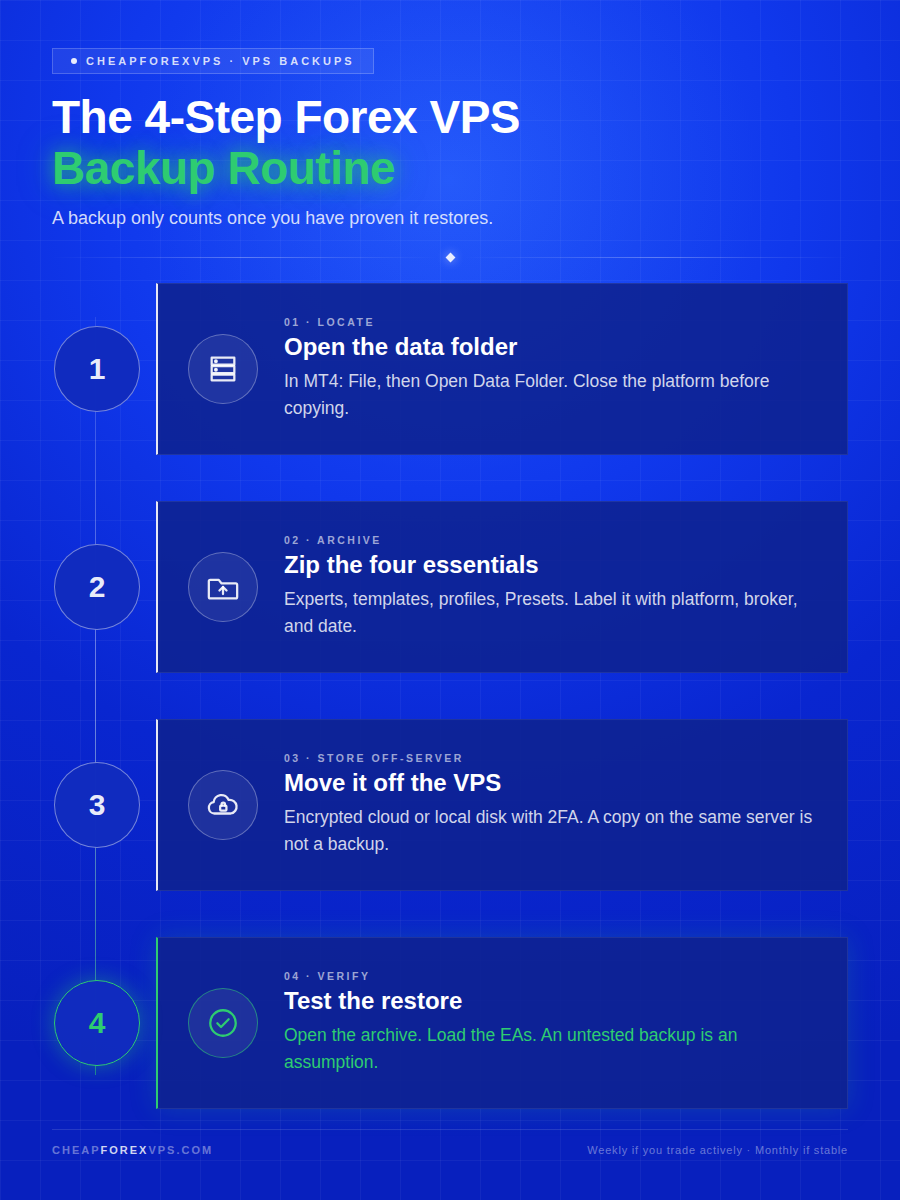
Open MT4, click File, then Open Data Folder, close the platform, and copy the key folders into a dated ZIP file stored off the server. The whole process takes under 10 minutes on a typical setup.
How Do You Find the MT4 Data Folder?
Locate the folder through the platform, not through Windows search. Each MT4 terminal installs its own data folder, and searching manually risks backing up the wrong one.
- Connect to your VPS over RDP.
- Open MT4.
- Click File.
- Click Open Data Folder.
- Wait for File Explorer to open.
- Close MT4 before copying anything.
The data folder is where the client terminal stores price history, configuration files, MQL4 programs, and profiles. MT5 uses the same path: open the platform, click File, then use the data folder option.
How Do You Copy the Backup Safely?
Copy the files while the platform is closed, then compress and move the archive off the server immediately. Files copied from a running terminal can be locked or mid-write, which produces an archive that fails on restore.
- Create a folder on the VPS desktop named MT4 Backup.
- Add the date to the folder name.
- Copy templates, profiles, MQL4, history, and logs into it.
- Right-click the backup folder.
- Compress it into a ZIP file.
- Upload the ZIP to secure cloud storage.
- Download a second copy to your local computer.
- Open the ZIP to confirm it is not corrupted.
Google Drive, Dropbox, and OneDrive all work for this. Enable two-factor authentication on whichever account holds the archive.
How Do You Restore the Files Later?
Install MT4 on the new server and launch it once before restoring anything. That first launch creates the folder structure your backup needs to merge into.
- Open File > Open Data Folder in the new MT4.
- Close MT4.
- Copy your backed-up folders into the new data folder.
- Choose Merge when Windows prompts.
- Restart MT4.
- Verify charts, templates, indicators, and EAs.
- Confirm the broker login and EA input settings.
A completed file copy is not a completed restore. Open the platform and confirm each EA loads with the correct inputs before you trade on it.
How Do Provider Snapshots and Automatic Backups Help?
Snapshots restore the entire server to a point in time, which covers failures that file backups cannot fix. A snapshot captures the operating system, installed programs, platform files, and configuration as a single disk image.
What Can a Snapshot Help With?
Snapshots address problems affecting the wider VPS environment rather than a single trading file. Rolling back to a working image is faster than rebuilding an environment by hand, which matters when the cost of downtime is measured per minute. Gartner has estimated the average cost of IT downtime at $5,600 per minute (Gartner).
| Scenario | What the Snapshot Recovers |
| Windows breaks after an update | The last working operating system state |
| Trading platform fails after a bad install | The platform build that ran correctly |
| Files deleted by mistake | The full disk contents at snapshot time |
| Server configuration damaged | Network, registry, and service settings |
| Planned major change | A tested rollback point before you start |
What Are the Limits of Snapshots?
Snapshots depend entirely on your provider’s schedule, retention window, and plan inclusions, none of which you control. That dependency is why they cannot replace file backups you hold yourself, and it produces several situations where no usable image exists.
| Limitation | Consequence |
| Plan does not include backups | No snapshot exists to restore from |
| Backup window predates recent changes | Restores an older setup and loses new work |
| VPS terminated and deleted | Snapshots are usually purged with the server |
| Retention period expired | The image you need is already gone |
| Provider size or frequency limits | Fewer restore points than your trading requires |
Keep your own copy of critical trading files outside the VPS regardless of provider reliability. CheapForexVPS backs its plans with a 99.95% uptime guarantee, and even at that level the correct assumption is that your files exist in at least two places.
How Often Should You Back Up?
Back up immediately after setup, before and after any EA or platform change, and weekly if you trade actively. A stable long-term setup can run on a monthly schedule.
| Situation | Backup Frequency |
| New VPS setup | Immediately after setup |
| New EA or indicator added | Before and after installation |
| EA settings changed | After saving the final preset |
| Active automated trading | Weekly |
| Heavy strategy testing | After each major change |
| Windows or platform updates | Before updating |
| Migration to a new server | Before moving files |
| Stable long-term setup | Monthly |
How Do You Keep Backups Organized?
Name each archive with the platform, broker, account type, and date so you can identify it without opening it. Restoration usually happens under time pressure, and an unlabeled ZIP pile costs you the minutes you were trying to save, so follow a consistent pattern like the ones below.
- MT4-BrokerA-Live-Backup-2026-06-29.zip
- MT5-EA-Test-Backup-2026-06-29.zip
- TradeCopier-Settings-Backup-2026-06-29.zip
Keep at least two recent backups at all times. The newest archive may have been created after the mistake you are trying to undo.
How Do You Avoid Common VPS Backup Mistakes?
Most backup failures trace to two assumptions: that the provider has a copy, and that the copy you made actually works. Both are verifiable in under five minutes, and the mistakes below are the ones that surface when nobody checks.
| Mistake | What It Costs You |
| Assuming the provider backs up everything | No recovery option when the server fails |
| Storing backups only on the same server | The backup dies with the machine |
| Forgetting EA presets | Rebuilding tuned inputs from memory |
| Forgetting templates and profiles | Rebuilding every chart layout by hand |
| Backing up only after a problem appears | The archive captures the broken state |
| Keeping unlabeled archives | Wasted minutes identifying the right file |
| Storing broker passwords in plain text | Account exposure if the VPS is compromised |
| Never testing the restore process | A corrupted archive discovered too late |
| Cancelling an old VPS before verifying files | Permanent loss of anything missed |
| Ignoring MT4 and MT5 folder differences | Files copied to paths the platform never reads |
Test the restore on a spare terminal before you need it. An untested backup is an assumption, not a safeguard, and a secure trading environment depends on verified recovery rather than intended recovery.
Backing Up Your Forex VPS: Key Takeaways
A working backup routine for a forex VPS has three parts: a dated copy of the MetaTrader data folder stored off the server, a provider snapshot for full-server recovery, and a restore test that proves the archive opens. Manual copies handle your EAs and settings. Snapshots handle the machine underneath them.
Match your schedule to your activity. Weekly for active automated trading, monthly for stable setups, and always before an EA change, a platform update, or a migration. Label every archive with the platform, broker, and date, and keep two recent versions.
Protecting your trading setup is easier when the server is built for traders. Compare plans starting at $5 a month, backed by a 99.95% uptime guarantee and a 5-day money-back guarantee, at CheapForexVPS.
Frequently Asked Questions About Forex VPS Backups
Does my provider back up my VPS automatically?
Some providers include automatic backups or snapshots, others charge extra, and some require you to enable it manually. Check your plan details, control panel, or support team before assuming anything is being saved.
Where should I store backups?
Store backups outside the VPS: your local computer, encrypted external storage, or a secure cloud account with two-factor authentication. A backup that lives on the same server is worthless the moment that server becomes inaccessible.
Can I restore a VPS from a snapshot?
Yes, if your provider offers snapshots and the image is still within its retention window. A snapshot restores the server state quickly, but keep separate file backups of your EAs, templates, profiles, and presets anyway.
Do I need to close MT4 before copying files?
Yes. A running terminal holds files open and writes to them continuously, which can produce a corrupted or incomplete archive. Close the platform, copy the folder, then reopen it.
How long does a full MT4 backup take?
Under 10 minutes for most setups, and the archive is usually small enough to upload in a single pass. Price history is typically the largest component, and you can exclude it if you only need your EAs and layouts.
What should I back up before migrating to a new VPS?
Back up the full MetaTrader data folder, all EA license files, your presets, and a written record of broker server names and account settings. Verify the archive opens before you cancel the old server.