Contact Info
118 ALJUNIED AVENUE 2, SINGAPORE (380118)
support@cheapforexvps.com


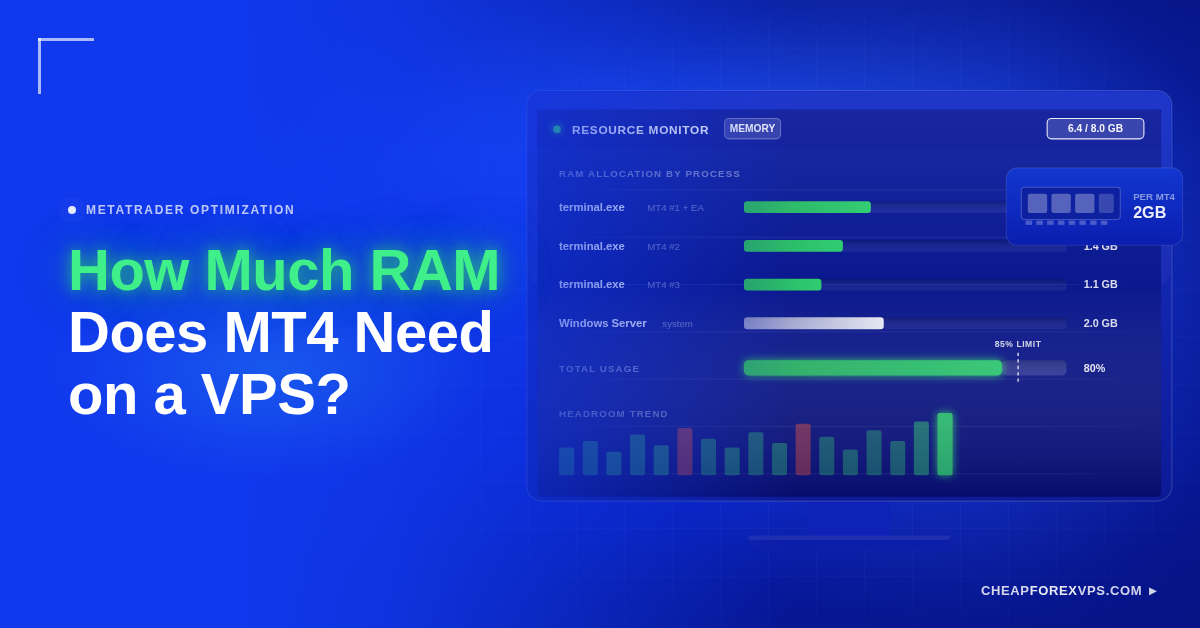
You set up MT4 on a small VPS, and it opens fine. Then you add an Expert Advisor, a few indicators, and a second account, and the platform starts to lag during volatile sessions. The problem is usually not MT4 itself. It is that the server ran out of memory headroom. A single MT4 terminal is lightweight, but the full trading environment around it is not.
The right RAM size depends on how simple or heavy your setup is. One clean terminal runs comfortably on a small forex VPS, while multiple accounts or active EAs need more room to stay stable. This guide explains how much RAM MT4 needs, how to size your VPS by instance count, and how to measure your real usage before you commit to a plan.
How Much RAM Does MT4 Need on a VPS?
A single MT4 instance uses roughly 0.5 to 1GB of RAM, so plan for at least 2GB per instance to run it smoothly with an Expert Advisor and indicators. Scale up from there for multiple charts or accounts running at once.
That extra room matters because MT4 is not the only process using memory. Windows Server, background services, antivirus tools, remote desktop, and log files all consume RAM before your first chart loads. MetaTrader 4 remains one of the most widely used retail trading platforms, with the MetaQuotes ecosystem serving traders across more than 190 countries, which means most brokers still build their VPS support around it.
Your workload sets the requirement:
- A simple MT4 account with a handful of charts runs on a small VPS.
- A larger setup with multiple EAs, many charts, or copy trading needs more RAM and CPU headroom.
- For live trading, never run the VPS at its limit, because a nearly full server can freeze or lag during volatile market conditions.
How Much RAM Do You Need per MT4 Instance?
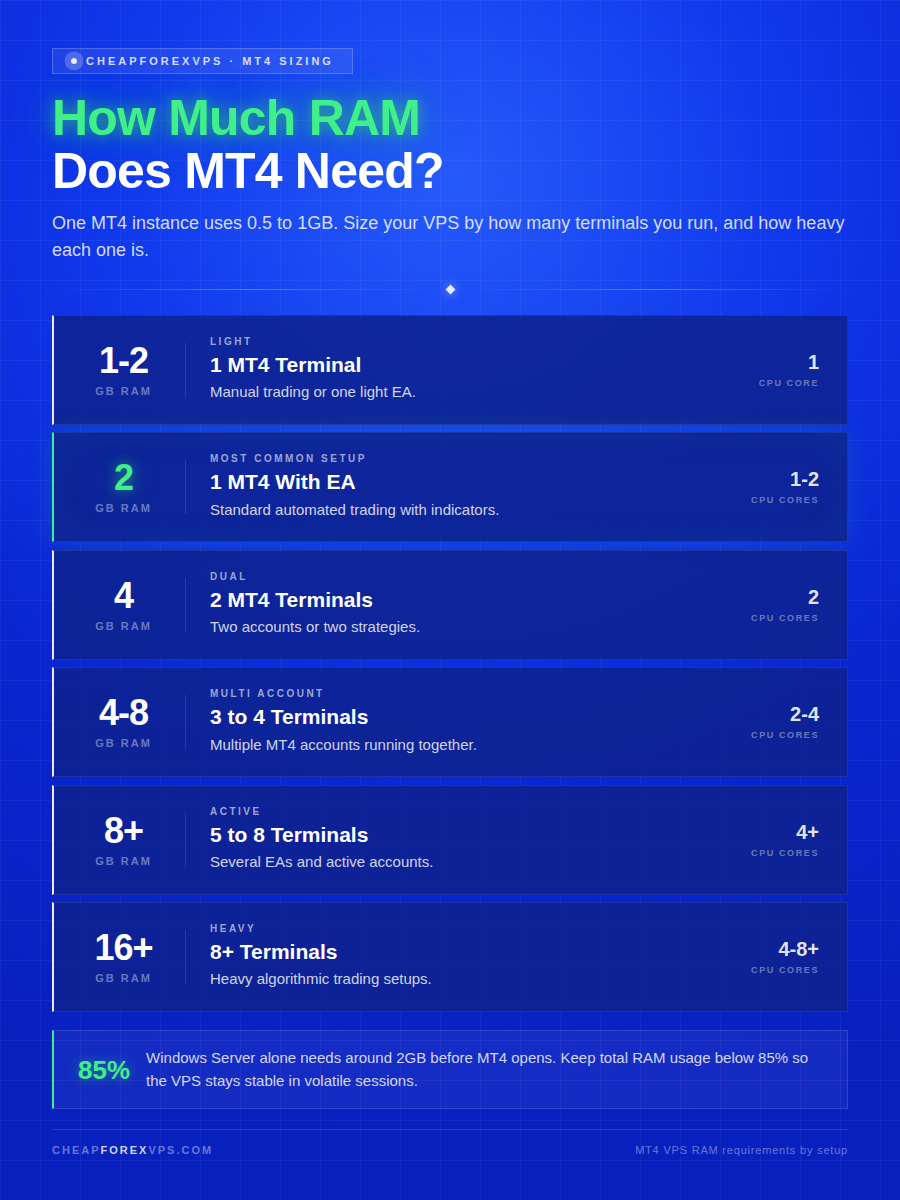
Start with 2GB of RAM for one MT4 instance running an Expert Advisor, then add capacity as you add platforms. Actual use varies with your setup, so treat the figures below as a planning baseline rather than a fixed rule.
| MT4 Setup | Suggested RAM | Suggested CPU | Best For |
| 1 light MT4 terminal | 1 to 2GB | 1 CPU core | Manual trading or one light EA |
| 1 MT4 with EA and indicators | 2GB | 1 to 2 CPU cores | Standard automated trading |
| 2 MT4 terminals | 4GB | 2 CPU cores | Two accounts or two strategies |
| 3 to 4 MT4 terminals | 4 to 8GB | 2 to 4 CPU cores | Multiple MT4 accounts |
| 5 to 8 MT4 terminals | 8GB+ | 4+ CPU cores | Several EAs and active accounts |
| 8+ MT4 terminals | 16GB+ | 4 to 8+ CPU cores | Heavy algorithmic trading setups |
How Should You Size a VPS for One MT4 Account?
For one MT4 account, a 2GB VPS is a practical starting point. It leaves room for Windows and background tasks while running a standard automated setup.
A 2GB plan works well when you run:
- One broker login for a single account
- A handful of charts for basic monitoring
- One EA for simple automation
- A few basic indicators for chart signals
- Light Remote Desktop use for setup checks
A 1GB VPS may open MT4, but it leaves little room for Windows Server and background processes. That gets uncomfortable during active trading, when memory demand spikes.
How Should You Size a VPS for Many MT4 Terminals?
For many MT4 terminals, do not size by platform count alone. Weigh how heavy each terminal is, because a clean terminal with one chart behaves very differently from one running ten charts, several indicators, and multiple EAs.
Use these planning rules:
- 2GB RAM for one normal MT4 setup
- 4GB RAM for two light to moderate terminals
- 8GB RAM for four to six moderate terminals
- 16GB RAM for many MT4 terminals or heavier systems
If you run multiple terminals for live trading, leave extra memory free. Spare capacity protects uptime and keeps performance steady during busy sessions.
What Else Uses RAM on a VPS?
MT4 is only one part of the workload, and the full trading environment consumes more memory than most traders expect. The operating system, automated tools, and any extra software all draw from the same pool.
How Do EAs and Indicators Use RAM?
EAs and indicators can raise RAM use sharply depending on what they do. Some are lightweight, while others constantly process tick data, scan symbols, manage orders, or write logs.
An EA that watches one chart may use little memory, but multiple EAs running across several symbols can use much more. Custom indicators add load too, especially when they calculate across many bars or symbols. The more tools you attach, the more RAM and CPU the VPS needs.
Heavy setups can affect:
- Chart responsiveness during busy price movement
- EA execution timing during order checks
- Copier speed between trading accounts
- Order execution during active sessions
- Platform stability under heavier load
- Remote desktop performance while connected
Low latency to the broker still matters, but weak server resources can delay the platform before the order even leaves the VPS. Automated strategies are sensitive to this delay, since research on execution shows that slippage costs rise as order processing slows during fast markets. That is why RAM, CPU, and location all factor into choosing a forex VPS.
How Does Windows Use RAM?
A Windows VPS needs RAM before MT4 even opens. Windows Server, security services, updates, remote access, and system processes all run in the background continuously.
Microsoft lists a practical baseline of around 2GB of RAM for a smooth Windows Server experience with the Desktop Experience installed, which is why a 1GB VPS often feels tight. MT4 may open, but the server may not have enough room left for smooth live trading. Size the server for both the operating system and the trading platform, never for MT4 alone.
How Do Other Tools Use RAM?
Many traders run more than MT4, and each extra program reduces the memory available to your terminal. This matters most when you manage multiple accounts, tools, or strategies on one server.
Extra memory may be needed for:
- MT5 running beside MT4
- Trade copiers between accounts
- Browser windows for broker access
- News tools for market updates
- Monitoring dashboards for account checks
- Account managers for multiple logins
- Backtesting tools for strategy testing
- Copy trading software for signal setups
- Algorithmic trading tools for automation
If you run MT4 and MT5 together, choose more RAM. MT5 is heavier depending on market watch lists, charts, and strategy tools.
How Do You Check MT4’s Real RAM Use?
Measure usage directly on your VPS after your normal charts, EAs, and indicators are loaded. Estimates are useful for planning, but only live measurement tells you what your specific setup actually consumes.
How Do You Check RAM in Task Manager?
Task Manager gives you a quick view of how much memory MT4 and the full VPS are using. Run the check with your normal trading setup open, since idle numbers understate real demand.
Follow these steps:
- Access your VPS through Remote Desktop.
- Open MT4 and load your normal setup.
- Press Ctrl + Shift + Esc to open Task Manager.
- Click Processes.
- Look for terminal.exe.
- Check the Memory column.
- Click Performance.
- Review total RAM usage.
- Watch usage during an active trading session.
MT4 usually appears as terminal.exe. If you run multiple terminals, you will see several terminal.exe processes at once.
What RAM Number Should You Watch?
Watch total system memory, not a single MT4 process. A healthy VPS keeps spare RAM available, and if total memory stays near the limit, upgrade before it causes downtime.
| Total RAM Usage | What It Means |
| Under 60% | Comfortable |
| 60 to 75% | Usually fine |
| 75 to 85% | Watch closely |
| 85 to 95% | Upgrade soon |
| 95%+ | Too tight for live trading |
Spare RAM absorbs short bursts from active trading, platform restarts, Windows tasks, and broker feed spikes. It gives the VPS room to handle these bursts without slowing the trading platform.
How Can You Reduce MT4 RAM Use?
You can make MT4 lighter without changing your trading strategies by clearing clutter and unused tools. This helps a small VPS run more smoothly before you decide to upgrade.
Try these steps:
- Close charts you do not use.
- Remove unused indicators.
- Hide unused symbols in Market Watch.
- Reduce chart history where safe.
- Delete old logs if they are not needed.
- Restart MT4 during quiet hours.
- Avoid running a browser on the VPS.
- Remove unused terminals.
- Use one clean profile per strategy.
A small VPS runs well when it stays clean. A cluttered VPS can struggle even with decent specs.
How Do You Choose the Right VPS for MT4?
The right VPS for MT4 gives you enough RAM, enough CPU, and low latency to your broker, so do not choose by RAM alone. CPU capacity and network distance shape execution just as much as memory.
What Should a Good MT4 VPS Include?
A good MT4 VPS matches your trading workload rather than the lowest price on the page. The specification should track how heavy your real setup is.
Look for:
- Enough RAM for your MT4 count
- Enough CPU for EAs and indicators
- Windows VPS compatibility
- Low latency to the broker
- Reliable uptime
- SSD or NVMe storage
- Easy Remote Desktop access
- Support for MT4 and MT5
- Upgrade options
Location plays a direct role here. CheapForexVPS runs servers in major financial hubs including Equinix NY4 in New York, LD4 in London, TY3 in Tokyo, and Singapore, which places your terminal close to broker infrastructure and reduces the network distance an order travels. Plans start from $5 a month with a 99.95% uptime guarantee, so a stable, low-latency setup does not require a large budget.
When Should You Upgrade?
Upgrade when the VPS no longer feels stable under your normal trading workload. The clearest signal is sustained memory pressure, since RAM usage that often exceeds 85% leaves no room for bursts.
Common upgrade triggers include:
- RAM usage often exceeds 85%
- MT4 freezes or lags
- EAs respond late
- Remote desktop feels slow
- You add more terminals or indicators
- You start running multiple EAs
- You move into high-frequency trading
A higher-spec VPS is not about looking fancy. It keeps the trading system stable. For most forex traders, the best VPS is the smallest plan that stays smooth under real market conditions.
Sizing MT4 RAM on a VPS: Key Takeaways
Plan for at least 2GB of RAM per MT4 instance running an EA, then scale by the weight of your setup rather than the platform count alone. A single clean terminal fits a 2GB plan, while multiple accounts, heavy EAs, or MT4 and MT5 together push you toward 4GB, 8GB, or more. Keep total memory usage under 85% during live sessions, measure your real consumption in Task Manager, and factor in CPU and broker latency alongside RAM.
Keep your MT4 setup running smoothly with a VPS sized for your real trading workload. Compare CheapForexVPS plans to find the right fit.
Frequently Asked Questions About MT4 RAM Requirements
Can MT4 run on 1GB RAM?
Yes, MT4 can run on 1GB RAM in a very light setup. For live trading with an EA, indicators, and Windows background tasks, 2GB is a safer starting point.
How many MT4 terminals fit in 4GB?
A 4GB VPS can usually run two light to moderate MT4 terminals. It may run more if the platforms are clean, but heavy EAs, many charts, or copy trading reduce that number quickly.
Does MT5 use more RAM than MT4?
MT5 can use more RAM than MT4, especially with more symbols, charts, and testing tools active. If you run both on one VPS, choose extra RAM instead of sizing only for MT4.
How do I check how much RAM MT4 is using?
Open Task Manager on your VPS with Ctrl + Shift + Esc, then look for terminal.exe under the Processes tab and check its Memory column. Also review total system usage under the Performance tab during an active trading session.
Is RAM or CPU more important for MT4?
Both matter, but they solve different problems. RAM keeps multiple terminals and tools stable, while CPU handles the calculations that EAs and indicators run, so a good MT4 VPS balances both alongside low broker latency.