Contact Info
118 ALJUNIED AVENUE 2, SINGAPORE (380118)
support@cheapforexvps.com
Recommended Services


Supported Scripts
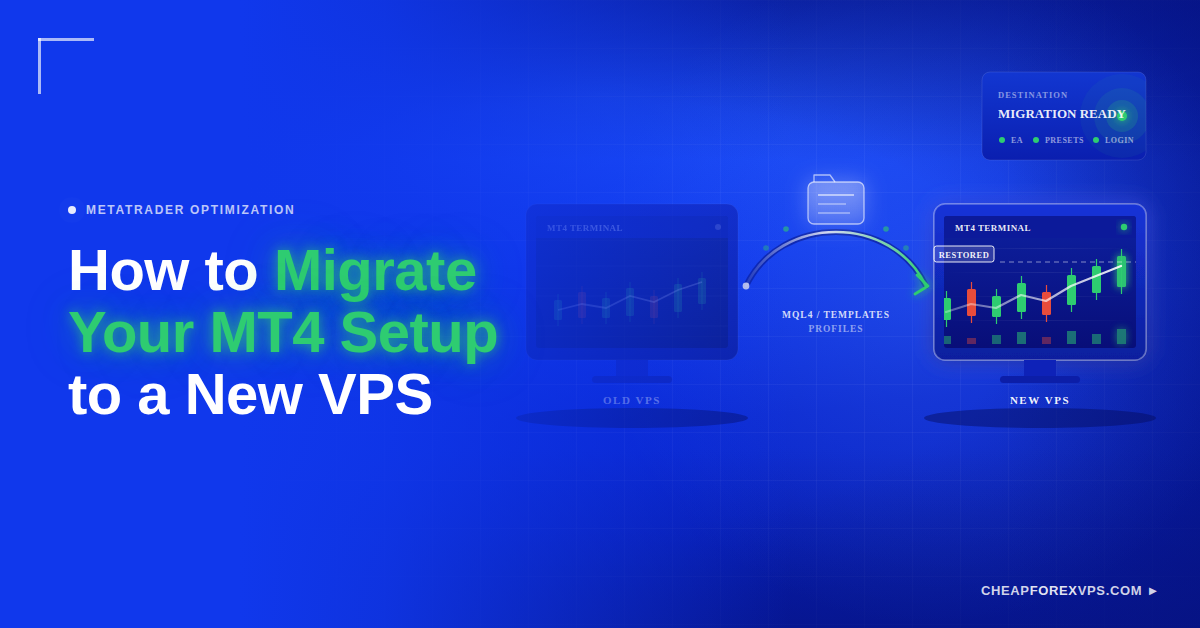
Moving your MT4 setup to a new VPS feels risky when your current platform already works. Your Expert Advisors, indicators, templates, profiles, and broker settings are all tied to that server. Migrate MT4 to a new VPS by installing the platform on the new server, copying your data folder files across, then testing everything before you cancel the old plan.
This guide covers what to back up, how to find and move your MT4 data folder, how to test the new server, and when it is safe to cancel the old VPS.
How Do You Migrate MT4 to a New VPS?
To migrate MT4 to a new VPS, install MT4 on the new server, then copy your templates, indicators, EAs, and profiles from the old MT4 data folder into the new one. Log in, reattach your EAs, and confirm everything runs before cancelling the old VPS.
The MetaTrader 4 data folder holds the user files that define your trading setup: templates, profiles, and the MQL4 directory where EAs and indicators live. Migration is the process of moving those files to a new server without breaking the trading system that depends on them.
The core migration sequence follows ten steps in order.
| Step | Action | Purpose |
| 1 | Keep the old VPS active | Preserves a working fallback |
| 2 | Install MT4 on the new VPS | Creates the target data folder |
| 3 | Open the MT4 data folder on the old server | Locates the files to copy |
| 4 | Back up templates, profiles, indicators, EAs, presets, and scripts | Protects the full setup |
| 5 | Copy those files to the new MT4 data folder | Transfers the setup |
| 6 | Log in to the broker account | Restores the connection |
| 7 | Reopen charts and check settings | Confirms the layout |
| 8 | Confirm EAs and alerts work | Verifies automation |
| 9 | Test trade execution on demo or small size | Validates live behavior |
| 10 | Cancel the old VPS only after testing | Ends the migration safely |
This process works whether you are switching providers, upgrading a VPS plan, or moving from a home PC to a hosted server. The goal stays the same in each case: move the setup without losing the files your trading system relies on. MetaTrader 4 remains one of the most widely used retail trading platforms worldwide, according to Finance Magnates, which makes a clean migration path valuable to a large share of active traders.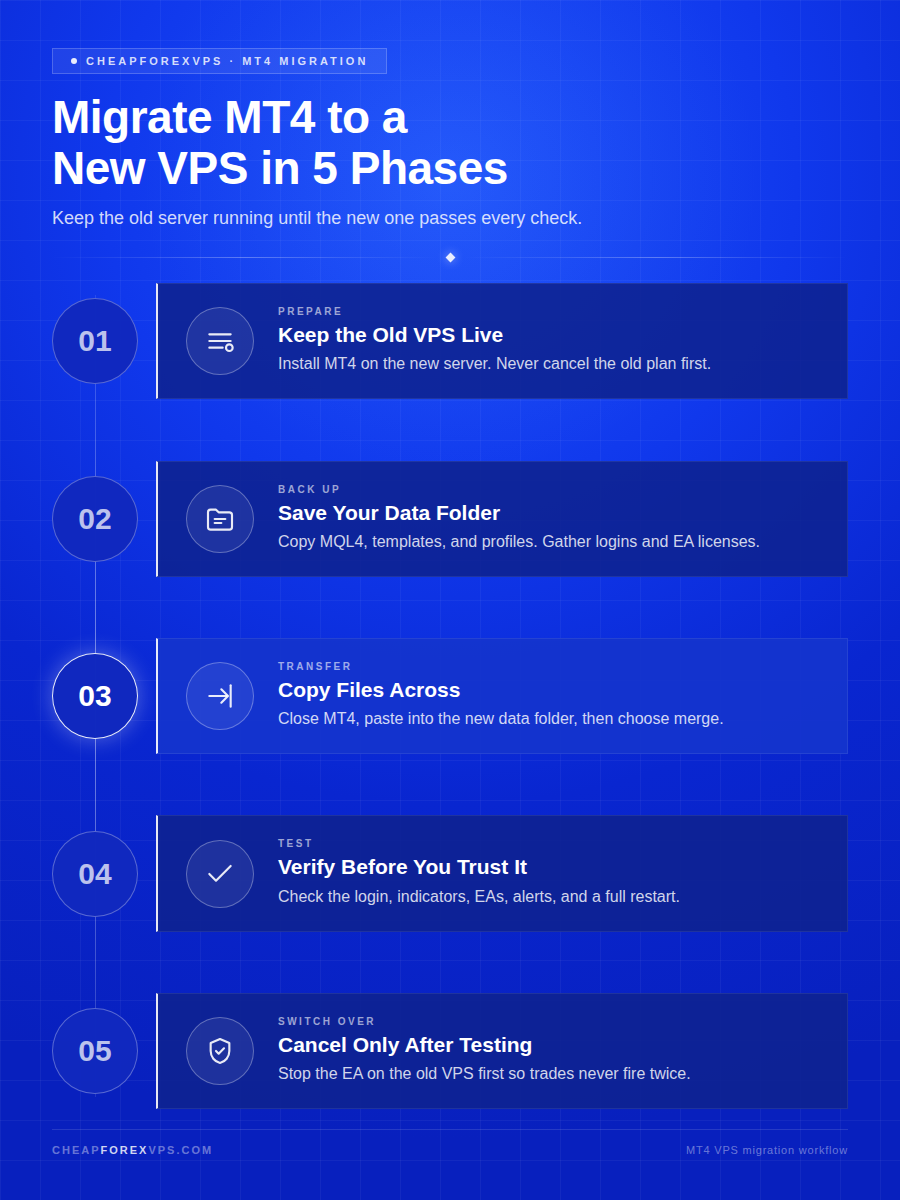
What Should You Back Up From Your Old VPS?
Back up your entire MQL4 folder, your templates folder, and your profiles folder, plus any license keys and EA developer notes. Make a clean backup before copying anything and do not rely on memory.
A structured backup covers three areas: the platform files that define your setup, optional logs for troubleshooting, and the credentials needed to reconnect. Each area carries its own rules.
Which MT4 Files Matter Most?
The MQL4 folder, templates folder, and profiles folder hold the parts of your setup you cannot afford to lose. MT4 stores different components in different locations, so knowing what each folder does prevents partial backups.
Back up these folders from the old MT4 setup before touching the new VPS:
- MQL4\Experts: your Expert Advisor files
- MQL4\Indicators: custom and third-party indicators
- MQL4\Presets: saved EA input settings
- MQL4\Libraries: supporting files some EAs require
- MQL4\Files: data files EAs read or write
- templates: saved chart layouts
- profiles: multi-chart workspace arrangements
Also save any license keys, account notes, and setup instructions from EA developers. These details are easy to forget during a move, but they matter if an EA needs to be reactivated or reconfigured on the new server.
Should You Back Up Logs?
Logs are optional and only worth copying when you need a record or are troubleshooting a specific problem. They help diagnose migration issues but are not required for the platform to work.
Back up logs only if one of these applies:
- You need a trade audit trail
- You are troubleshooting an EA
- A developer requested log files
- You want records before deleting the old server
Log folders grow large over time. Moving unnecessary logs clutters the new setup and makes it harder to manage, so copy them only when there is a clear reason.
Should You Copy Broker Passwords?
Never store broker passwords in a plain text file. Use a secure password manager instead. Confirm you have every credential before you start copying files.
Gather these credentials before migration:
| Credential | Purpose |
| Trading account number | Broker login |
| Broker server name | Platform connection |
| Account password | Full trading access, stored securely |
| Investor password | View-only access |
| MQL5 login | Subscriptions or signals |
| EA license details | Reactivation on the new server |
A missing password can stall the entire migration midway. Verifying access before you copy files is faster than discovering the gap halfway through the move.
How Do You Find the MT4 Data Folder?
Open MT4 and click File, then Open Data Folder. This opens the exact directory where the platform stores your user files. The data folder is not the same as the installation folder.
The install folder holds the program itself, while the data folder holds your templates, profiles, and MQL4 files. Copying from the wrong one is the most common migration mistake, so both matter here.
How Do You Open the Data Folder in MT4?
Opening the folder from inside MT4 is the safest method because it points directly to the correct terminal. This avoids searching through hidden Windows directories and copying the wrong files.
Follow these steps on the old VPS:
- Open MT4 on the old VPS
- Click File
- Click Open Data Folder
- Wait for Windows Explorer to open
- Keep this folder open for reference
Repeat the same step on the new MT4 installation later. Opening the folder from the platform itself removes the guesswork that causes traders to copy files from the wrong terminal.
Why Is the Data Folder Different From the Install Folder?
Modern MT4 builds store user data under a Windows user path rather than inside the program directory. This separation keeps your files intact when the platform updates.
The data folder path usually looks like this:
C:\Users\UserName\AppData\Roaming\MetaQuotes\Terminal\LongTerminalID
Each MT4 terminal gets its own unique folder, identified by a long terminal ID. This matters when you run multiple MT4 installations from multiple brokers on one server.
If you are unsure which folder belongs to which terminal, check carefully before copying. The wrong folder migrates the wrong templates, EAs, or profiles into the new setup.
How Do You Copy Templates, EAs, and Profiles?
Copy the MQL4, templates, and profiles folders from the old data folder into the new one, then choose merge when Windows asks. Copy only what you need to keep the new VPS clean.
You can move the full setup or a single EA depending on your needs. Either way, closing MT4 before copying protects the files from being changed while the platform is running.
How Do You Move the Files Safely?
Move the files in a controlled sequence so the old setup is fully backed up before anything is pasted into the new server. This ordered process prevents overwrites and missed files.
| Step | Action |
| 1 | On the old VPS, open File, then Open Data Folder in MT4 |
| 2 | Close MT4 after the folder opens |
| 3 | Create a backup folder on the desktop |
| 4 | Copy MQL4, templates, and profiles into the backup folder |
| 5 | Compress the backup folder into a ZIP file |
| 6 | Upload the ZIP to Google Drive, Dropbox, OneDrive, or another secure transfer method |
| 7 | Download the ZIP on the new VPS |
| 8 | Install and open MT4 on the new server once |
| 9 | Click File, then Open Data Folder on the new MT4 |
| 10 | Close MT4 |
| 11 | Paste the backed-up folders into the new data folder |
| 12 | Choose merge folders when Windows asks |
| 13 | Restart MT4 |
Closing MT4 before copying prevents files from being overwritten while the platform is running. It also gives Windows a cleaner copy and reduces the chance of missing recent changes.
How Do You Move One EA Only?
Move a single EA by copying only its Experts file, required Libraries, Presets, data Files, and the matching chart template. A smaller transfer is easier to verify and keeps old clutter off the new server.
Copy only these items for a single-EA move:
- The EA file from MQL4\Experts
- Any required files from MQL4\Libraries
- The preset file from MQL4\Presets
- Any data files from MQL4\Files
- The chart template from templates
Restart MT4 and reattach the EA afterward. This is cleaner than copying an entire cluttered terminal into a fresh server.
How Do You Recreate Shortcuts?
Create a desktop shortcut to terminal.exe so the platform is easy to reopen, and name it clearly. Clear naming prevents mistakes when several MT4 terminals run on one server.
Follow these steps to build a shortcut:
- Open the MT4 installation folder
- Find the terminal.exe file
- Right-click the file
- Select Send to
- Choose Desktop shortcut
- Rename the shortcut clearly
Use descriptive names that identify the account or purpose, such as Broker A Live MT4, Broker B EA Account, or Copy Signal Receiver. Clear labels reduce the risk of opening the wrong platform or attaching an EA to the wrong account.
How Do You Test Before You Cancel the Old Plan?
Test the new VPS fully before relying on it, and never cancel the old server immediately after copying files. Confirm logins, indicators, EAs, and trade execution first.
Testing splits into two priorities: verifying the copied setup works, and preventing both servers from trading the same account at once. Both must pass before you release the old plan.
What Should You Check First?
Confirm the copied files, broker login, and trading tools all work before you trust the server with live trades. Run through this checklist in order.
- Open MT4 on the new VPS
- Log in to the correct broker server
- Confirm prices are moving
- Open the correct profile
- Load the saved template
- Check every custom indicator
- Attach each EA
- Load the correct preset file
- Enable AutoTrading
- Check the Experts and Journal tabs
- Confirm alerts work
- Confirm the platform reconnects after restart
If you use virtual hosting, signals, or an MQL5 subscription, confirm the account is logged in correctly and that the service rules allow the move. Some tools are tied to specific accounts, terminals, or devices, so they need extra checks after migration.
How Do You Avoid Duplicate Trades?
Stop the EA on the old VPS before enabling it on the new one, so the same EA never trades the same account from two servers at once. Two active servers running the same EA can open duplicate trades.
Use this safer switchover method:
| Step | Action |
| 1 | Keep the old VPS active |
| 2 | Install and configure the new VPS |
| 3 | Disable AutoTrading on the new VPS while checking files |
| 4 | Stop the EA on the old VPS during a quiet period |
| 5 | Enable the EA on the new VPS |
| 6 | Watch the first session closely |
| 7 | Keep the old VPS available for rollback |
This reduces downtime without risking both servers trading at once. It also gives you a fallback if the new VPS has a problem during the first test session.
When Is It Safe to Cancel the Old VPS?
Cancel the old VPS only after the new server passes every check, from login to trade execution to a full restart. Copied files alone are not proof the setup works.
Cancel only when all of these are true:
- The new MT4 logs in correctly
- EAs and indicators load
- Presets are correct
- No license errors appear
- Orders execute correctly
- Network latency is acceptable
- The setup survives a restart
- You have a backup copy
If a provider offers free or white-glove migration, still review the copied setup yourself. You are the one who knows how the trading system should behave. A provider with a 99.95% uptime guarantee and a 5-day money-back guarantee gives you time to run this verification without pressure.
How to Migrate MT4 to a New VPS: Key Takeaways
Migrating MT4 to a new VPS comes down to a disciplined sequence: back up the MQL4, templates, and profiles folders, copy them into the new server’s data folder, test every EA and login, then cancel the old plan only after the new one passes every check. Keeping the old VPS active as a fallback removes almost all the risk from the move.
The most common mistakes are copying from the install folder instead of the data folder, cancelling too early, and running the same EA on both servers at once. Avoid those three and the migration stays clean.
Make your MT4 migration easier with a VPS plan built for traders. Pick the setup that fits your platform and get in touch with our team.
Frequently Asked Questions About MT4 VPS Migration
Will I lose my EA settings when I move?
You should not lose EA settings if you copy the correct preset files, templates, and required MQL4 folders. The settings live in those files, not on the server itself.
Still, open each chart after migration and confirm the input values before live trading. A quick check now prevents a surprise on the first live session.
Can I run both VPS plans during migration?
Yes, and keeping both active during migration is often the safer choice. It gives you a working fallback if the new server has a problem.
Just make sure the same EA is not trading the same account from both servers at the same time. Stop the EA on the old VPS before enabling it on the new one.
Do I need to re-license my EAs?
Sometimes. Some EAs are locked to a specific computer, VPS, account number, or hardware ID.
Check the license rules before migration and contact the developer if the EA needs activation on the new server. Confirming this early avoids a license error stalling your go-live.
How long does an MT4 VPS migration take?
Most migrations take under an hour once you have your credentials ready and the data folder located. The file copy itself is quick, and testing is where the time goes.
Budget extra time if you run multiple terminals or EAs that need re-licensing. Rushing the testing phase is where migrations go wrong.
What is the MT4 data folder?
The MT4 data folder is the directory where MetaTrader 4 stores your user files, including templates, profiles, and the MQL4 folder that holds your EAs and indicators. It is separate from the installation folder that holds the program.
You open it from inside MT4 by clicking File, then Open Data Folder. This is the folder you copy during migration.
Can I move MT4 from a PC to a VPS the same way?
Yes, the process is identical to a VPS-to-VPS move. You back up the same MQL4, templates, and profiles folders and copy them into the MT4 data folder on the VPS.
A VPS runs your setup continuously without depending on your home computer or internet connection. This keeps EAs trading even when your PC is off.