Contact Info
118 ALJUNIED AVENUE 2, SINGAPORE (380118)
support@cheapforexvps.com



You connect to your VPS, glance at MT4 and see it in the bottom-right corner: a red bar icon and the words No connection. Your charts have stopped updating, your Expert Advisors cannot trade, and you have no idea how long it has been like this.
The good news is that “No connection” almost always has a simple cause, and most fixes take less than five minutes. The hard part is working out which cause applies to you, because MT4 shows the same message for very different problems: a wrong server name, an expired account, a blocked port or a broker that has moved its servers.
This guide gives you a step-by-step way to find the cause and fix it, starting with the quickest checks. It also covers the related messages you might see, such as “Invalid account”, “Old version” and “Waiting for update”, and finishes with habits that stop the problem coming back.
First: Read What MT4 Is Telling You
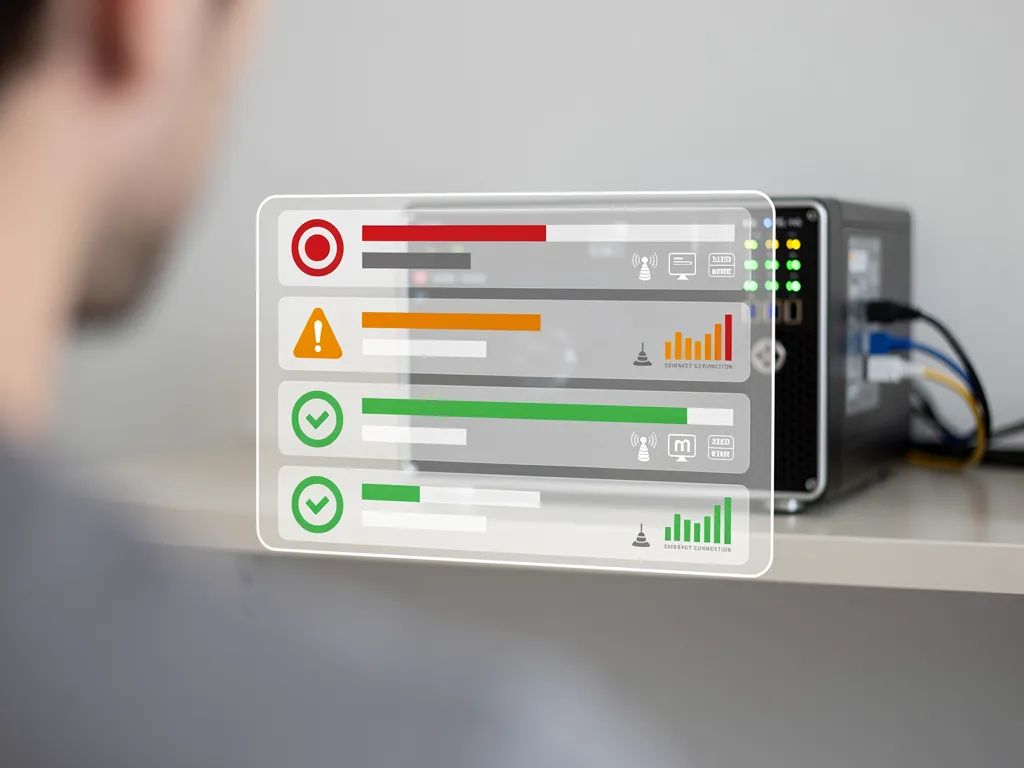
The bottom-right corner of MT4 is your diagnostic panel. Before you change anything, note exactly what it says.
Next, open the Journal. Click View > Terminal (or press Ctrl+T) and select the Journal tab. Look at the most recent lines. They record every connection attempt, the server it tried, and why it failed. Write down the time the problems started; it often points to the cause, such as a Windows restart or a password change.
Step 1: Check That It Is Not Just Your Broker

Before fixing your own setup, rule out a problem on the broker’s side.
- Is the market open? Over the weekend, many brokers take servers down for maintenance, and MT4 may show No connection for a while. This is normal.
- Do other terminals connect? If you run several MT4 terminals for different brokers on the same VPS and only one shows No connection, the VPS’s internet connection is fine and the problem is with that broker or account.
- Check the broker’s announcements. Brokers post server maintenance and migrations by email, on their website or in their client area. A planned migration is one of the most common reasons a working terminal suddenly stops connecting.
If every terminal on the VPS shows No connection at once, skip to Step 5, because the problem is likely the VPS’s network or firewall.
Step 2: Rescan the Servers

Many brokers run several servers or access points. If the one MT4 was using goes down, MT4 does not always switch by itself.
- Left-click the connection status in the bottom-right corner.
- Click Rescan servers.
- Wait up to a minute. MT4 tests each server and connects to the best one.
If a list of servers appears with ping times, you can also click a server directly to connect to it. Our guide on how to check your broker ping in MT4 and MT5 explains what those numbers mean.
Step 3: Log In Again with the Correct Details
Most “Invalid account” errors and many “No connection” errors come down to login details.
- Click File > Login to Trade Account.
- Check the account number. Demo and live accounts have different numbers.
- Type the password by hand rather than pasting it. Hidden spaces are a common problem. Make sure you use the trading (master) password, not the read-only investor password and not your broker website password.
- Check the server exactly. Live and demo accounts sit on different servers, and many brokers have several live servers, such as Broker-Live01 and Broker-Live05. Your welcome email states which one is yours.
- Tick Save password and click Login.
When the details are correct but the account is still invalid
- Demo accounts expire. Many brokers delete demo accounts after a period of inactivity. Open a new one.
- Prop firm accounts are disabled after a breach or a pass. If you failed or passed a challenge phase, the old account is closed and you receive new login details.
- Your broker reset your password, for example after a security check. Look for an email.
Step 4: Add Your Broker’s Server Manually
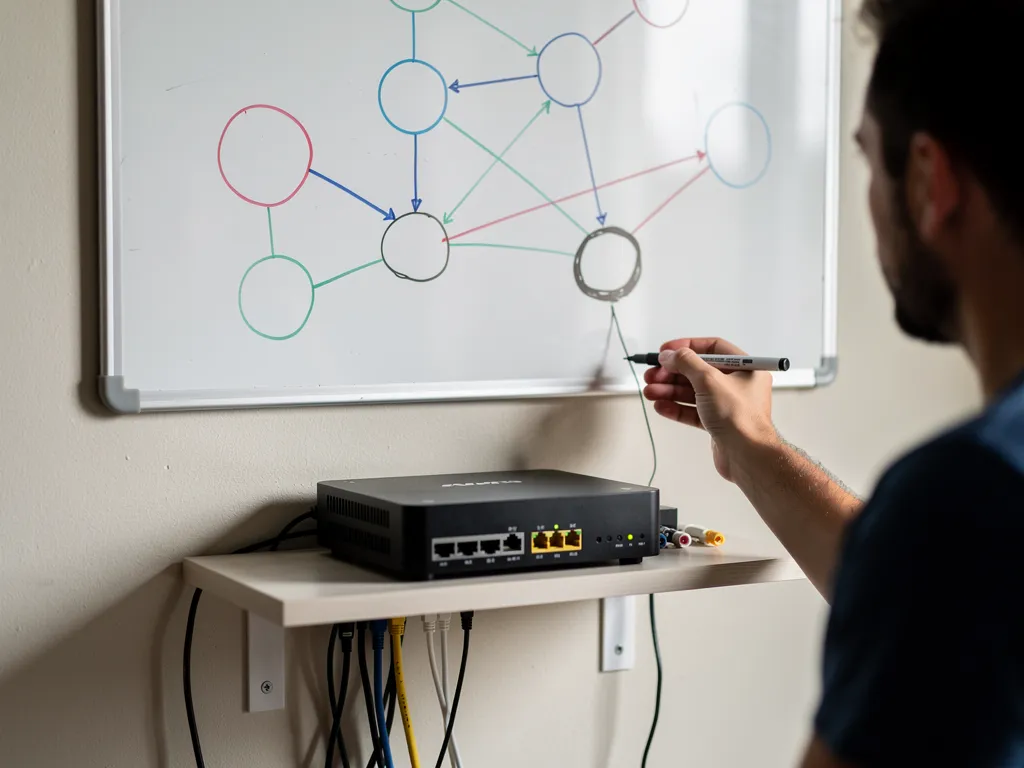
If your broker’s server is not in the list at all, or your terminal came from another broker, MT4 does not know where to connect. You can add the server yourself.
- Click File > Open an Account.
- In the window that opens, look for your broker’s company name. If it is not listed, click the + (add new broker) field or the area at the bottom of the list.
- Type your broker’s server address, exactly as your broker provides it. This is often a hostname with a port, such as mt4.yourbroker.com:443.
- Press Enter or click Scan. MT4 finds the server and adds it to the list.
- Choose the server, click Next, select Existing trade account, and enter your login and password.
If your broker cannot give you a server address, download MT4 directly from their website instead. Their own installer always includes the correct servers.
Step 5: Check the VPS Network and Windows Firewall
If every terminal on the VPS shows No connection, check the VPS itself.
Is the VPS online?
Open a web browser inside the VPS and load any website. If nothing loads, the VPS has lost its internet connection. Restart the VPS from your client area. If that does not help, contact your provider’s support team with the time the problem started.
Is Windows Firewall or antivirus blocking MT4?
Windows Firewall sometimes blocks a newly installed terminal, especially if you dismissed the “Allow access” prompt when MT4 first started.
- Open the Start menu and type Allow an app through Windows Firewall.
- Click Change settings.
- Find terminal.exe for each MT4 installation and make sure it is ticked. If it is missing, click Allow another app and browse to the terminal.exe file in the MT4 installation folder.
If you installed any third-party antivirus or security software on the VPS, check whether it is blocking MetaTrader, and add an exception if it is.
Is a proxy turned on by mistake?
In MT4, click Tools > Options > Server. Unless your provider told you to use one, Enable proxy server should be unticked. A leftover proxy setting copied from another computer will stop MT4 connecting.
Step 6: Update or Reinstall MT4
The “Old version” message
MetaQuotes stops supporting older MT4 builds over time, and brokers’ servers then refuse to connect to them. MT4 normally updates itself in the background. If it shows Old version, it has not been able to update.
The quickest fix is to download the latest MT4 installer from your broker’s website and install it into the same folder. This keeps your charts, EAs and settings while replacing the program files. Before you do, back up your data folder (File > Open Data Folder). Our guide on how to back up your forex VPS and trading data explains what to copy.
A damaged installation
If MT4 still refuses to connect after all the steps above while a fresh installation connects normally, the original installation’s configuration may be damaged. Install a fresh copy from your broker’s website into a new folder, log in, and move your EAs, indicators and templates across. See how to install MT4 on a VPS step by step.
Step 7: Check the VPS Date, Time and Resources
- Date and time. Secure connections depend on the computer’s clock. If the VPS clock is far out, connections can fail. Right-click the clock in the Windows taskbar, choose Adjust date/time, and make sure Set time automatically is on.
- Memory. A VPS that has run out of RAM can make terminals freeze, which looks like a connection problem. Open Task Manager and check memory use. Each MT4 terminal typically uses around 1 GB. If you are close to the limit, close unused programs or upgrade your plan. See how much RAM MT4 needs on a VPS.
- CPU. If one EA or indicator is using all the CPU, the terminal may stop processing incoming data. Our guide on why your forex VPS may be running slow shows how to find the culprit.
Frequent Disconnections: When MT4 Keeps Dropping
Sometimes MT4 is not offline, but drops and reconnects many times a day. In the Journal you will see repeated “connection lost” and “connected” messages.
- Wrong location. A VPS far from your broker has a longer, less stable route. Choose the data centre closest to your broker’s server. Our broker latency table shows which of our locations, London or New York, is closer to more than 150 brokers.
- A slow or overloaded access point. Rescan servers when your EAs are flat.
- Too many terminals for the plan. Every terminal needs memory and CPU. Spread them across a larger plan if needed.
What to Do with Open Trades During an Outage
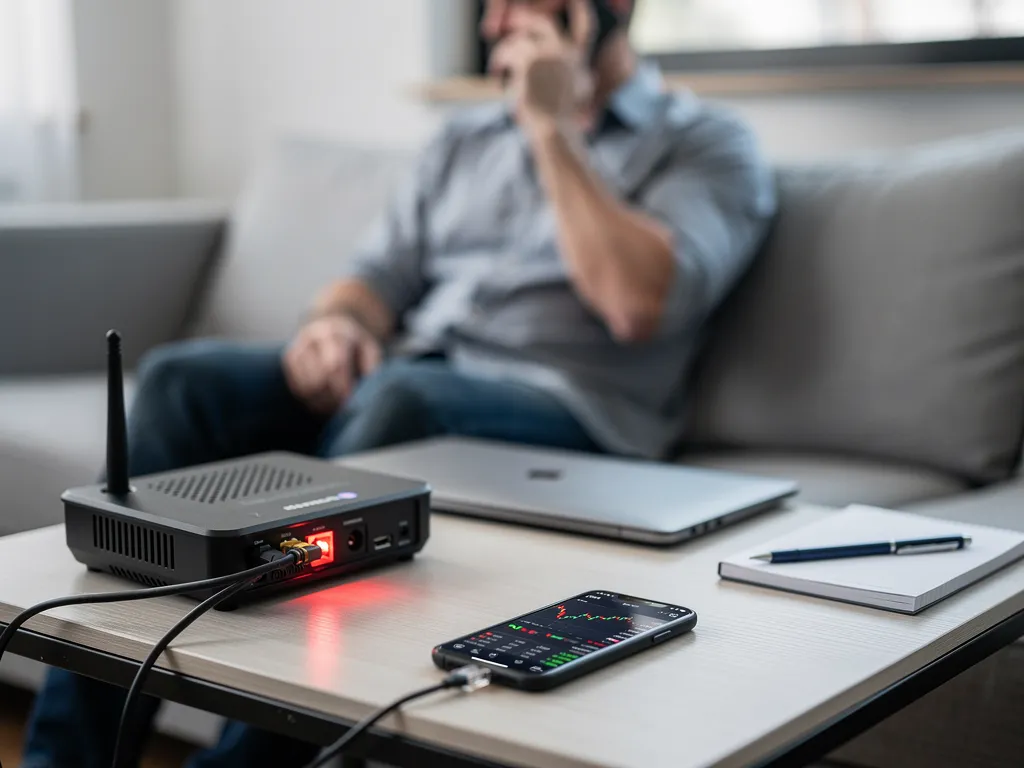
If MT4 is disconnected while you have open positions, those trades are still live at your broker. Stop losses and take profits placed as normal orders are held on the broker’s server and still work. Hidden or virtual stops managed by your EA do not work while MT4 is offline.
If you need to act urgently, use your broker’s mobile app or web platform. They connect separately from your VPS and let you close or adjust positions immediately while you fix the terminal.
Habits That Prevent “No Connection” Problems
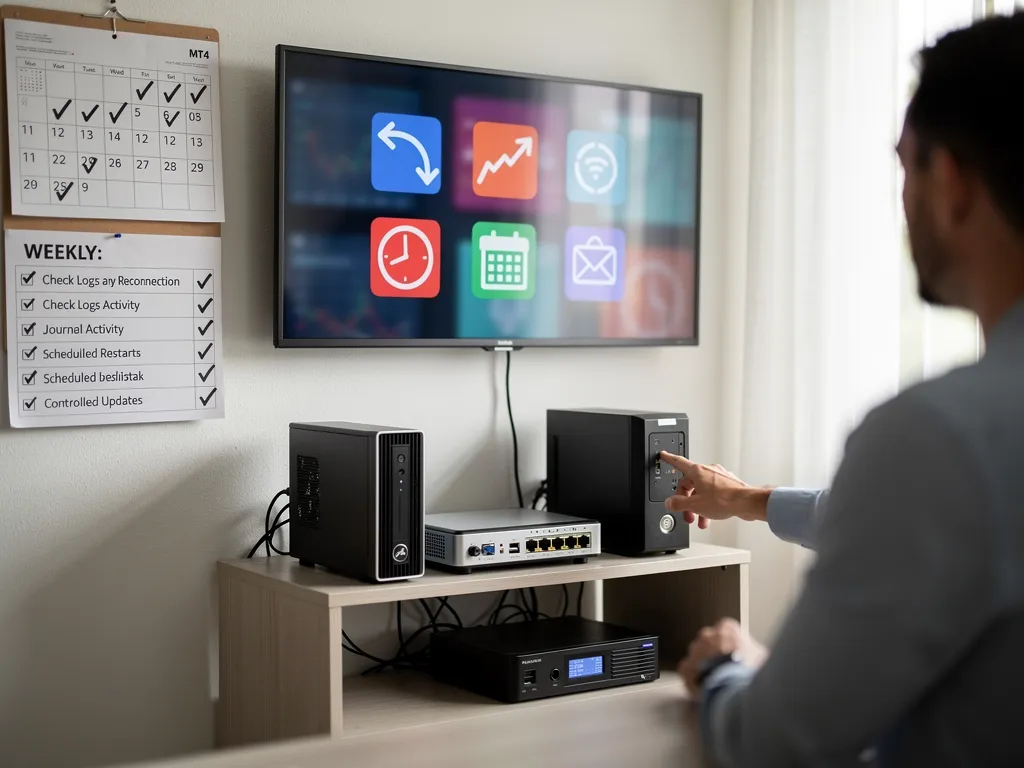
- Save your login in every terminal so it reconnects automatically after a restart.
- Make MT4 start automatically when the VPS restarts. Follow how to auto-start MT4 after a VPS reboot.
- Control Windows updates so the VPS does not restart in the middle of a session. See how to stop Windows updates restarting your forex VPS.
- Read broker emails about server migrations and update your server name before the change date.
- Check the Journal once a week for repeated disconnections.
- Use broker-side stop losses so an outage never leaves a trade unprotected.
Still stuck? Our 24/7 support team can check your VPS network and help you get MT4 connected. Contact us by live chat or ticket, or explore our forex VPS plans if you are setting up a new server.
Frequently Asked Questions
What does “No connection” mean in MT4?
It means MT4 cannot reach your broker’s trading server. Common causes are a wrong or outdated server name, a broker server problem, a firewall block or a network issue on the computer running MT4.
What is the difference between “No connection” and “Invalid account”?
“No connection” means MT4 could not reach the server. “Invalid account” means it reached the server but the server rejected your login, usually because of a wrong password, wrong server or a disabled account.
Why does MT4 work on my PC but not on my VPS?
The VPS may have a different MT4 installation without your broker’s server list, a Windows Firewall rule blocking terminal.exe, or a proxy setting. Install MT4 from your broker’s website on the VPS and log in again.
Does “No connection” close my open trades?
No. Your trades stay open at your broker. Stop losses placed at the broker still work, but your EA cannot manage trades until MT4 reconnects.
How do I add a missing server in MT4?
Use File > Open an Account, type your broker’s server address into the search field, and scan. MT4 adds the server to your list.
MT4 says “Old version”. What should I do?
Download the latest MT4 installer from your broker and install it into the same folder. Back up your data folder first.
Why does MT4 keep disconnecting every few hours?
Usually because of distance to the broker’s server, an overloaded access point, or a VPS short of memory. Check the Journal, rescan servers and make sure your VPS is close to your broker.