
Contact Info
118 ALJUNIED AVENUE 2, SINGAPORE (380118)
support@cheapforexvps.com


How to Run 99% Tick-Data Backtests in MT4 on a VPS
*Short answer: MT4’s own Strategy Tester builds ticks from one-minute bars, which caps modelling quality at around 90%. To reach 99%, you import real historical tick data with a third-party tool such as Tickstory or Tick Data Suite, then launch MT4 through that tool. A VPS is a good place to do it because tick data is large, tests run for hours, and the server keeps going when your own computer is off.*
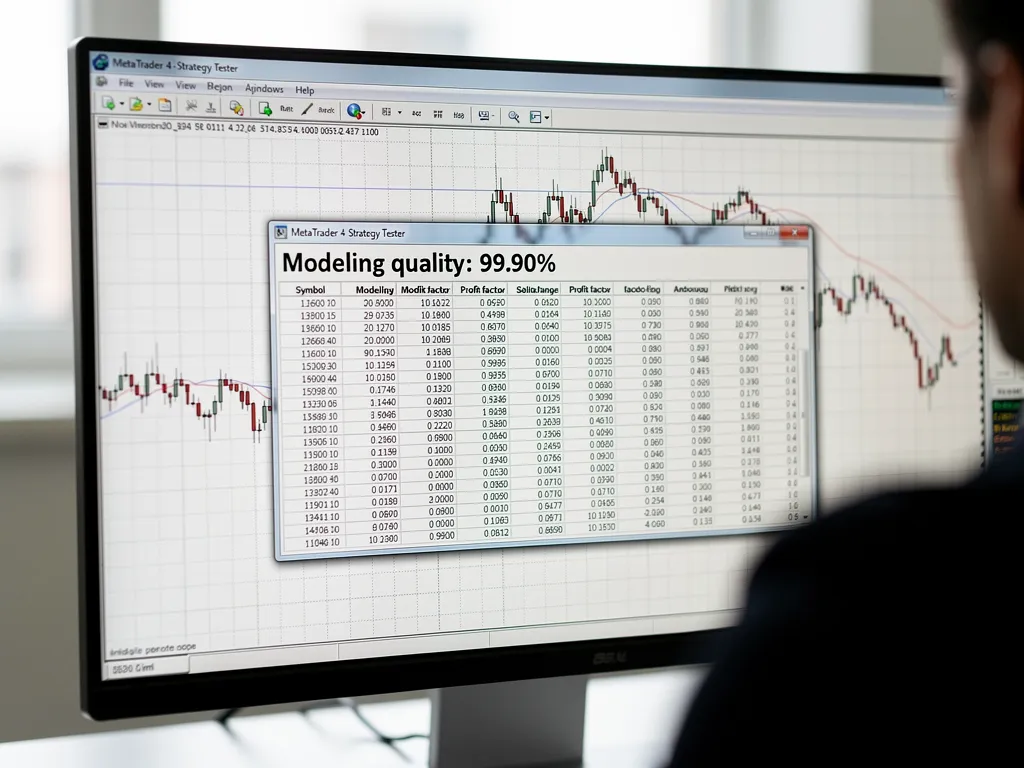
If you have ever looked at an MT4 backtest report, you have seen the “Modelling quality” figure near the top. On a standard test it usually says 90% at best, and often much less. Many EA sellers advertise “99% modelling quality” results, and serious EA developers will not trust a scalping or grid strategy until they have tested it that way.
This guide explains what that number actually measures, why MT4 cannot reach 99% on its own, how traders get there with real tick data, and how to set up a reliable tick-data backtesting workstation on a Windows VPS.
What “Modelling Quality” Really Means
MT4’s Strategy Tester does not replay real market history tick by tick. By default it takes your broker’s one-minute (M1) price bars and generates artificial ticks inside each bar using a fixed pattern. The modelling quality percentage is MT4’s estimate of how closely that simulation follows the data it was given.
- Under 90%: the tester did not even have complete M1 data, so it filled gaps with data from higher timeframes.
- Around 90%: complete M1 history, but ticks inside each minute are still invented.
- 99% (or “99.9%” in some tools): the tester was fed real recorded ticks, so each simulated price change matches a price that actually traded in the data source.
For a strategy that holds trades for days, the difference between 90% and 99% is often small. For a scalper with a 3-pip target, or an EA that uses tight trailing stops, invented ticks can make a losing strategy look profitable. That is the main reason to test with real ticks.
What 99% does not mean
A 99% figure means the test followed real tick data closely. It does not mean the result will repeat in live trading. Your live results still depend on your broker’s actual spreads, commission, slippage, execution speed and requotes, none of which a backtest fully captures. A 99% backtest is a much better filter than a 90% one, but it is still a filter, not a forecast.
Why MT4 Needs Outside Tools for 99%
MT4 has no built-in way to import tick data into the tester. Two parts of the process have to be changed:
- The data. You need tick-by-tick history, usually from a data provider such as Dukascopy, converted into the files the MT4 tester reads (FXT files for ticks and HST files for bars).
- The tester. MT4 normally rebuilds the FXT file from your broker’s bars every time you start a test, overwriting your imported ticks. The tick-data tools launch MT4 in a way that stops this and lets it use the imported file.
MT5 handles this differently: its tester can use real ticks from your broker directly. If you are developing in MT5, read can you run the MT5 Strategy Tester on a VPS? instead.
The Main Tools
Two tools are widely used for MT4 tick-data backtesting. Both work on a Windows VPS.
Check each tool’s current website for supported MT4 builds and features before you buy, because both are updated regularly. One difference worth knowing: Tickstory’s support forum notes that variable spreads are not supported in its own tester integration, while Tick Data Suite offers a “real spread” option. If your strategy is sensitive to spread changes around news, that matters.
Why Run Tick-Data Backtests on a VPS?
- Long runs. A multi-year tick-data test on one pair can take hours, and an optimisation can take days. A VPS runs through the night without your laptop staying on.
- Fast downloads. Tick data for several years is large. A data-centre connection usually downloads it far faster than home broadband.
- Your PC stays free. You can keep working on your own computer while the VPS crunches tests.
- Close to your live setup. Testing on the same type of Windows server you trade on reduces surprises when you go live.
If you also trade live on the same server, keep heavy testing to the weekend or use a separate VPS, so tests never slow your live EAs.
How Much Disk Space and RAM You Need
Disk space
Tick data is the main consideration. Each year of tick history for one major pair can take several gigabytes once exported to MT4 format, and the tools keep their own downloaded copy as well. Testing five pairs over ten years can easily need tens of gigabytes. Before you start:
- Check free space in File Explorer on the VPS.
- Start with one pair and two or three years, see how much space it uses, then scale up.
- Delete old FXT files you no longer need.
Our plans range from 30 GB on the smallest to 200 GB and more on the larger tiers, so pick a plan with room to spare if you test many pairs. See VPS hosting packages compared.
RAM and CPU
The MT4 tester uses a single CPU core for each test, so more cores do not speed up a single MT4 test. They do let you run several MT4 testing installations side by side. Each MT4 terminal needs around 1 GB of RAM, more during heavy tests. Reduce memory use by setting Tools > Options > Charts > Max bars in chart to a lower figure, such as 10,000. Our guide on how much RAM MT4 needs on a VPS has more detail.
Step-by-Step: Set Up a Tick-Data Backtesting VPS
Step 1: Install a separate MT4 for testing
Do not test in the same MT4 you trade with. Install a fresh copy in its own folder and log it in to a demo account. Our guide on how to install MT4 on a VPS step by step walks through installation. Check that its build is supported by your tick-data tool.
Step 2: Prepare MT4
- In Tools > Options > Charts, lower Max bars in chart.
- In Tools > Options > Expert Advisors, allow automated trading, and allow DLL imports if your EA or tool needs them.
- Close MT4.
Step 3: Install the tick-data tool and download data
Install Tickstory or Tick Data Suite on the VPS, point it at your testing MT4 folder, and download history for the pair and period you want. Start small: one pair, two years.
Step 4: Export or import the data into MT4
Follow your tool’s export or import steps. These create the FXT and HST files in MT4’s tester folders. Some workflows ask you to make the FXT files read-only so MT4 cannot overwrite them.
Step 5: Launch MT4 through the tool
Start MT4 from the tool’s launcher, not from the normal desktop shortcut. This is the step most people miss; if MT4 is started normally, the report shows “n/a” or 90% instead of 99%.
Step 6: Configure the test realistically
- Set spread to match your broker’s typical trading spread, or use a variable or real spread option if your tool supports it.
- Add commission if your account charges it.
- Use Every tick as the model.
Step 7: Run and check the report
After the test, confirm the modelling quality line shows 99% (or 99.9%). If not, recheck the launch step and the date range of your imported data.
Getting Test Files Onto the VPS
You will often copy EAs and set files from your own computer. Our guide on transferring files to a forex VPS with RDP explains the easiest ways.
From Backtest to Live
- Backtest with real ticks and realistic costs.
- Forward test on a demo account for several weeks; see do you need a VPS to test an EA on a demo account?
- Go live with small size on a VPS close to your broker, using our broker latency table to choose London or New York.
- Compare live results with the backtest monthly.
Frequently Asked Questions
Why does my MT4 backtest only show 90% modelling quality?
Because MT4 generates ticks from one-minute bars. Reaching 99% requires importing real tick data and launching MT4 through a tick-data tool.
Does 99% modelling quality guarantee live profits?
No. It means the test followed real tick data closely. Live results also depend on spreads, commission, slippage and execution at your broker.
Can I run Tickstory or Tick Data Suite on a VPS?
Yes. Both run on Windows and work on a Windows VPS. Check their current supported MT4 builds.
How much disk space do tick-data backtests need?
It depends on the number of pairs and years. Plan for several gigabytes per pair per year, and check usage after your first import.
Does a VPS with more cores make MT4 backtests faster?
Not a single MT4 test, because the MT4 tester uses one core. More cores let you run several testing terminals at once.
Should I backtest on the same VPS I trade live on?
You can, but run heavy tests at the weekend or on a separate VPS so live EAs are not slowed down.