
Contact Info
118 ALJUNIED AVENUE 2, SINGAPORE (380118)
support@cheapforexvps.com


How to A/B Test EA Settings on One VPS
*Short answer: Install two separate copies of MT4 on one VPS, log each into its own demo account with the same broker, and run the same EA with one setting changed in each. Keep everything else identical, let both run until each has at least 100 trades, then compare profit factor, maximum drawdown and trade count rather than just profit.*
Backtests tell you how a setting would have performed in the past. They cannot fully show how it behaves with your broker’s real spreads, execution and slippage today. That is where A/B testing comes in: running two versions of an Expert Advisor side by side, in live market conditions, to see which one really holds up.
A VPS is the ideal place to do it. Both versions run around the clock on the same server, with the same connection to the broker, so the only meaningful difference between them is the setting you are testing. This guide shows you how to set it up properly and how to judge the results without fooling yourself.
What A/B Testing an EA Means
You take one EA and create two versions:
- Version A is your current or default setting, the “control”.
- Version B changes one input, such as the stop loss distance, a filter on or off, or the trading session.
Both run at the same time on the same market data. Because they face exactly the same conditions, any consistent difference in results comes from the setting you changed, not from luck of timing.
The most common mistake is changing several inputs at once. If B has a different stop loss, take profit and lot size, and it does better, you will not know which change helped. Test one change at a time.
Why Use a VPS for A/B Testing?
- Identical conditions. Both terminals share the same server, connection and distance to the broker. On a home PC, one could be affected by Wi-Fi drops the other misses.
- Uninterrupted running. A test needs weeks of continuous data. A VPS keeps both versions online while your computer is off. If you are wondering whether this is worth it for demo testing, read do you need a VPS to test an EA on a demo account?
- Realistic latency. Choose the data centre nearest your broker using our broker latency table, so the test reflects the speed you will trade at live.
Step 1: Choose the Right VPS Size
Each MT4 terminal typically uses around 1 GB of RAM, more with many charts or heavy indicators. For an A/B test you need two terminals, plus headroom:
See how many EAs a cheap forex VPS can actually run and how much RAM MT4 needs on a VPS for more on sizing.
Step 2: Install Two Separate MT4 Copies
You could run both versions in one terminal, but it is cleaner to use two installations:
- Run your broker’s MT4 installer and choose a folder such as C:MT4-A.
- Run the installer again and choose C:MT4-B.
- Rename the desktop shortcuts “MT4 A” and “MT4 B” so you never mix them up.
Separate installations mean a crash, freeze or settings change in one cannot affect the other. Our guide on how to install MT4 on a VPS step by step covers installation in detail.
Step 3: Use Two Demo Accounts with the Same Settings
Open two demo accounts with the same broker, account type, leverage and starting balance. If one account is a raw-spread account and the other a standard account, you are testing account types, not your EA setting.
Log MT4 A into the first account and MT4 B into the second. Save the passwords so each terminal reconnects automatically after a restart.
Can I use one account instead?
Yes, by running both versions in one terminal on one account with different magic numbers, which most EAs use to tell their own trades apart. It is simpler but has drawbacks: the two versions share margin, so a big loss in one can limit the other, and some EAs behave differently when other trades are open. Two accounts give a cleaner comparison.
Step 4: Keep Everything Else Identical
Before you start, check that both terminals match on:
- Symbol and timeframe of the chart.
- EA version (the same .ex4 file).
- Every input except the one you are testing.
- Lot size or risk percentage.
- Starting balance.
- Start date and time. Start both at the same moment.
Save each version’s inputs as a set file named clearly, for example “EA-A-SL30.set” and “EA-B-SL45.set”, and keep a short note of what you are testing and when it started.
Step 5: Let It Run Long Enough
The biggest A/B testing mistake is deciding too early. A strategy can win or lose ten trades in a row by chance. As a rough guide:
- At least 100 trades per version before drawing any firm conclusion.
- At least several weeks, covering different market conditions such as a news week and a quiet week.
- For slow strategies with few trades a month, combine the forward test with a long, high-quality backtest of both settings, then use the forward test to confirm.
Step 6: Compare the Right Numbers
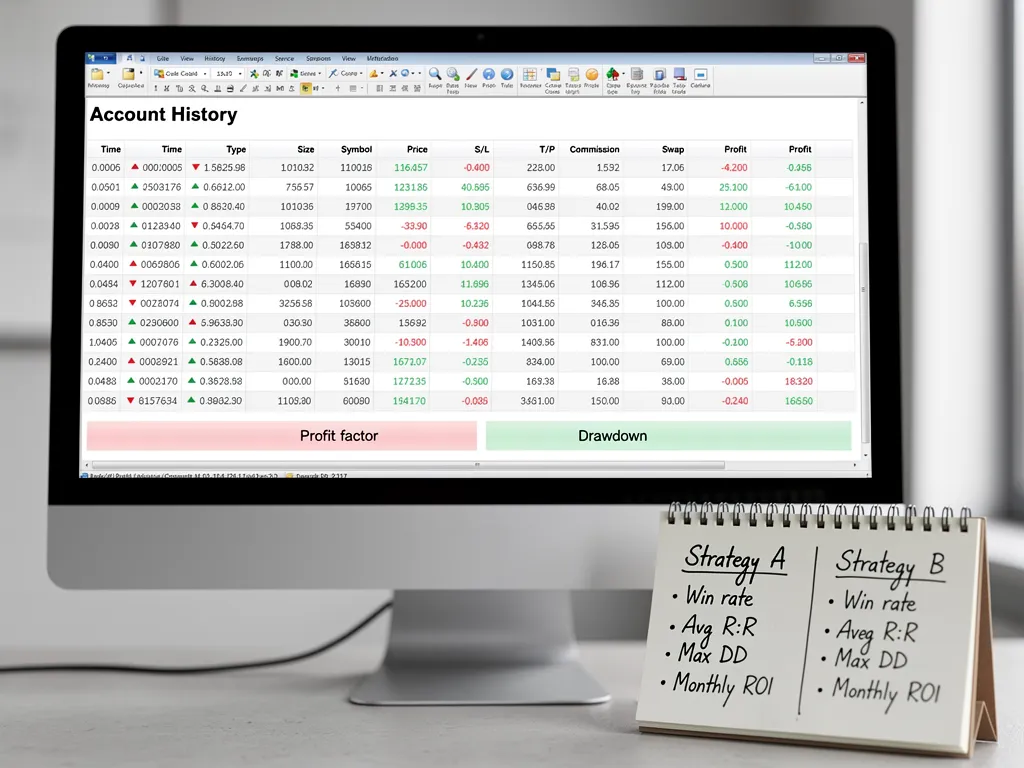
Do not just compare total profit. Look at:
MT4’s Account History tab lets you right-click and choose Save as Detailed Report for each terminal. Open both reports side by side, or copy the figures into a spreadsheet.
Watch for false winners
If B beats A by a small margin over a small number of trades, treat it as a draw. Run the test longer or confirm with a backtest. Only adopt a change when it is consistently better on both profit factor and drawdown.
Step 7: Keep the Test Running Smoothly
- Make both terminals start automatically after a VPS restart. Follow how to auto-start MT4 after a VPS reboot.
- Disconnect from the VPS, never sign out, or both terminals close.
- Check the Journal in each terminal weekly for disconnections. If one disconnects more than the other, the comparison is unfair. See fixing “No Connection” errors in MT4.
After the Test: Moving the Winner Live
- Load the winning set file into your live terminal.
- Start with a small position size.
- Keep the A/B setup running on demo if you want to keep testing the next change.
A VPS with spare capacity lets you run one live terminal and an ongoing A/B test side by side. Compare our forex VPS plans to find the right size.
Frequently Asked Questions
Can I A/B test two EA settings on one VPS?
Yes. Install two separate MT4 copies, log each into its own demo account, and run the same EA with one setting changed.
Do I need two MT4 installations?
It is recommended. Separate installations stop one version’s crash or settings change affecting the other.
How long should an A/B test run?
Until each version has at least 100 trades and has seen a range of market conditions, usually several weeks or more.
What should I compare between the two versions?
Profit factor, maximum drawdown, number of trades, average win and loss, and slippage, not just total profit.
How much RAM do I need for an A/B test?
About 1 GB per MT4 terminal, plus headroom. A 3–4 GB VPS suits a single A/B test.
Can I test more than one change at once?
You can run several pairs of tests, but change only one input per comparison so you know what caused the difference.