Contact Info
118 ALJUNIED AVENUE 2, SINGAPORE (380118)
support@cheapforexvps.com


Best Cheap Forex VPS for Student Traders & Beginners
__Short answer:__ For a beginner running one or two MetaTrader terminals, a 1–2 core VPS with around 2 GB of RAM is enough, and it is usually the cheapest plan a provider sells. The real hurdles for students are practical ones: campus Wi-Fi that blocks remote desktop, laptops that sleep, and connecting from a Mac, Chromebook, iPad or phone. This guide covers how to handle each.
If you are learning to trade while studying or working, your setup probably looks like this: a laptop that goes everywhere with you, a shared Wi-Fi network you do not control, a phone, and a budget that does not stretch to expensive hardware. That is fine. A VPS is designed for exactly this situation, because it moves the part that must stay on, your trading platform, off your laptop and into a data centre.
This guide is about making that work in practice: choosing a plan that is big enough without overpaying, and getting reliable access to it from whatever device and network you have.
Step 1: Decide Whether You Need a VPS Yet
Be honest with yourself here. A VPS is useful when something needs to run while you are not watching: an Expert Advisor, a trade copier, or a strategy that holds trades overnight. If you only trade by hand for an hour in the evening, or you are still learning chart reading on a demo, your laptop is enough for now.
Read is a forex VPS worth it for small accounts? if you are unsure. Many beginners get a VPS at the point where they start forward-testing an EA on a demo account, because that test is meaningless if the laptop keeps going to sleep.
Step 2: Choose the Right Size, Not the Biggest
Beginners often overpay because a bigger plan feels safer. For learning, it rarely is. What you need depends on how many trading terminals run at once.
Each MetaTrader terminal uses roughly 1 GB of RAM, and Windows needs some memory for itself. Start small: you can upgrade from the control panel later, so there is no reason to pay for capacity you might use one day. Our beginner’s checklist of forex VPS specs goes into more detail.
Watch the billing term
Small plans are cheapest on longer terms. At Cheap Forex VPS, the Lite plan is $5 a month on 24-month billing and around $10 a month on the shortest term. If you are still experimenting, a short term costs more per month but less upfront; once you know you will keep trading, a longer term saves money. Compare options on our VPS plans page, which includes a 5-day money-back guarantee.
Step 3: Solve the Campus or Office Wi-Fi Problem
You connect to a VPS using Remote Desktop (RDP), which normally uses port 3389. Many university, school and workplace networks block that port, or block remote access tools entirely. The symptom is simple: you can connect from home, but not from the library.
What to do, in order:
- Test from another network. Connect from your phone’s mobile data or a personal hotspot. If it works there, the campus network is the cause, not your VPS.
- Use your phone’s hotspot for quick checks. Remote desktop uses very little data when you are only glancing at charts for a few minutes.
- Ask the network administrator. Some campuses allow remote desktop on request, or offer a guest network with fewer restrictions.
- Check positions on your broker’s mobile app instead. The MT4 and MT5 apps connect to your broker directly, not to your VPS, and usually work on restricted networks. They let you see trades and close them if needed, while the EA keeps running on the VPS.
One clear rule: do not try to bypass your institution’s network restrictions with tunnels or VPNs if their policy forbids it. It can breach your acceptable-use agreement and is not worth the risk. The hotspot and mobile app cover almost every need.
Step 4: Stop Worrying About Laptop Sleep
Laptop sleep is the main reason beginners lose EA trades on a home setup. Close the lid between lectures and the EA stops; open it later and it reconnects, having missed whatever happened.
With a VPS, your laptop only displays the VPS. You can close the lid, shut it down or let the battery run out, and your platform keeps running in the data centre. The one rule is to disconnect, not sign out: close the remote desktop window when you are done. Signing out inside the VPS closes MetaTrader.
To protect against VPS restarts too, set your platform to start by itself using how to auto-start MT4 after a VPS reboot.
Step 5: Connect from Any Device You Own
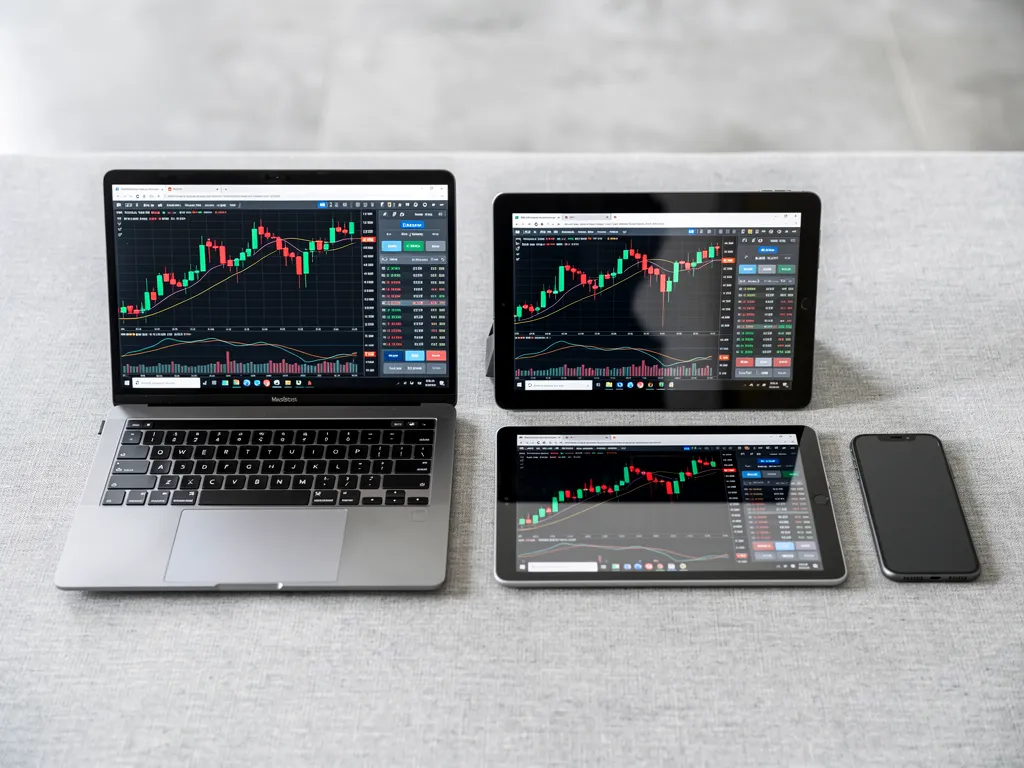
You do not need a Windows computer to use a Windows VPS. Microsoft’s free Windows App (the renamed Remote Desktop app) works on most devices.
MacBook
Install Windows App from the Mac App Store, add your VPS’s IP address, username and password, and connect. Our Mac connection guide covers display settings and file transfer.
Windows laptop
Remote Desktop Connection is built in. Type “Remote Desktop” in the Start menu. See how to connect to a forex VPS from a Windows PC.
Chromebook
Most current Chromebooks can run Android apps from the Google Play Store. Install Microsoft’s Windows App from the Play Store and add your VPS the same way. If your Chromebook does not support Android apps, ask our support team about other options.
iPad and iPhone
Windows App is available on the App Store. An iPad works well for a quick look at your charts; with a keyboard case, it is comfortable enough for basic management.
Android phone
Install Windows App from the Play Store, or follow our guide on using a forex VPS on Android. Phones are best for checks, not for setting up EAs.
Tip: set up the VPS and install your platform from a laptop the first time. After that, any device will do for daily checks.
Step 6: Keep It Simple and Secure
- Use a strong, unique VPS password and keep it in a password manager, not in a note on your phone.
- Do not share your login, even with classmates or a trading group.
- Keep one test at a time. Running too many experiments at once makes it hard to learn what works.
- Note your results weekly so you can see your progress, not just individual trades.
A Word on Risk
A VPS makes your setup more reliable. It does not make a strategy profitable, and it cannot protect you from losses. Leveraged forex and CFD trading carries a high risk of losing money quickly. While you are learning, trade on a demo account or with money you can genuinely afford to lose, and use a broker that is regulated and permitted in your country.
When you are ready to run your first EA around the clock, the Lite plan is built for exactly that. If you have questions about which plan fits, contact our support team any time.
Frequently Asked Questions
What is the cheapest VPS for forex beginners?
A 1-core VPS with 2 GB of RAM, enough for one MetaTrader terminal with one EA. At Cheap Forex VPS, that is the Lite plan from $5 a month on 24-month billing.
Why can’t I connect to my VPS on campus Wi-Fi?
Many campus networks block remote desktop (port 3389). Test from your phone’s hotspot; if it works there, the campus network is the cause. Ask the network administrator rather than trying to bypass it.
Can I use a forex VPS from a Chromebook?
Usually yes. Install Microsoft’s Windows App from the Google Play Store on a Chromebook that supports Android apps, then add your VPS’s address and login.
Will my EA stop if I close my laptop?
No, as long as you disconnect from the remote desktop instead of signing out. The EA keeps running on the VPS.
Do I need a VPS while I am still learning?
Not always. If you trade manually for short periods, your laptop is enough. A VPS becomes worthwhile when you run an EA or need trades managed while you are away.
Can I upgrade later if I need more terminals?
Yes. Start on a small plan and upgrade from your control panel when you add terminals.